Module 5 - Lab 2 : Backup Datastore
Table of Contents
Expand to access the In-page navigation
Objective(-s):
- Enroll SSH Public Key to the Backup Server.
- Create a Backup (Restic) datastore.
Enroll the SSH Public Key to the Backup Server.
5.2.1
Connect to the Node 1’s Command
Copy the Public Key from the Host 1 to the Backup Server. Please note the username on the Backup Server!
You are going to be prompted to enter the password!
ssh-copy-id backup-admin@<your backup server IP>
/usr/bin/ssh-copy-id: INFO: Source of key(s) to be installed: "/var/lib/one/.ssh/id_rsa.pub"
/usr/bin/ssh-copy-id: INFO: attempting to log in with the new key(s), to filter out any that are already installed
/usr/bin/ssh-copy-id: INFO: 1 key(s) remain to be installed -- if you are prompted now it is to install the new keys
backup-admin@<your backup server IP>'s password:

Number of key(s) added: 1

Now try logging into the machine, with:   "ssh 'backup-admin@<your backup server IP>'"
and check to make sure that only the key(s) you wanted were added.
5.2.2
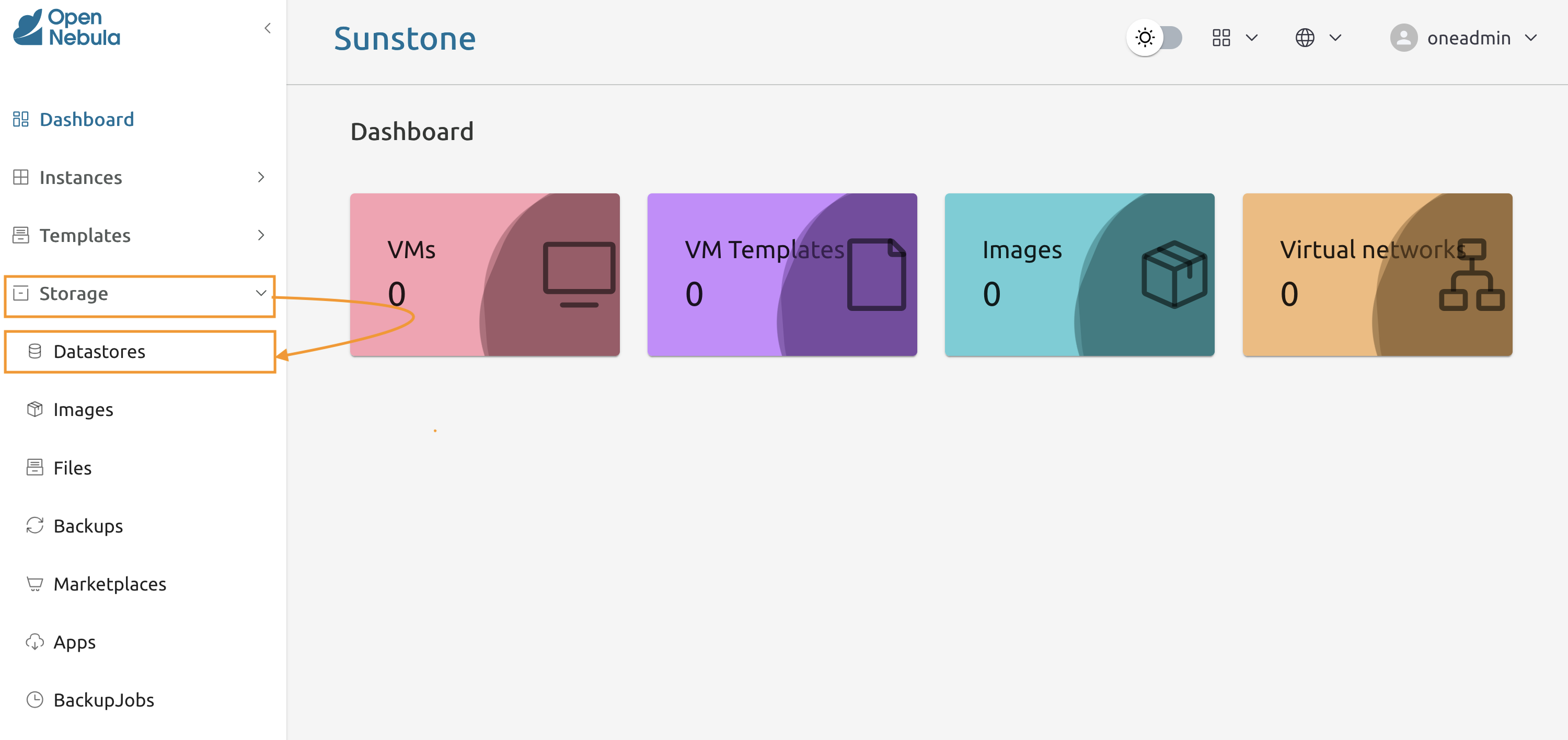
Open the Sunstone interface and navigate to Storage -> Datastores.
5.2.3
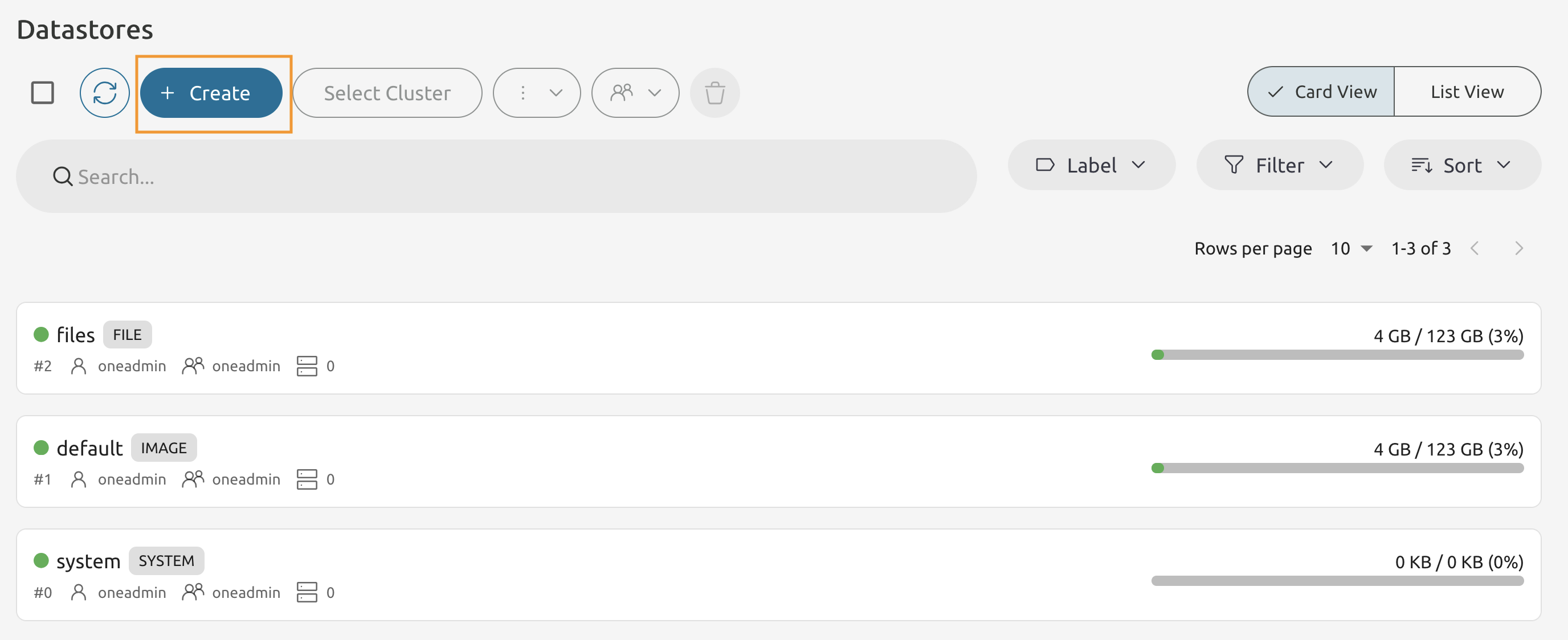
Press Create to start the wizard.
5.2.4
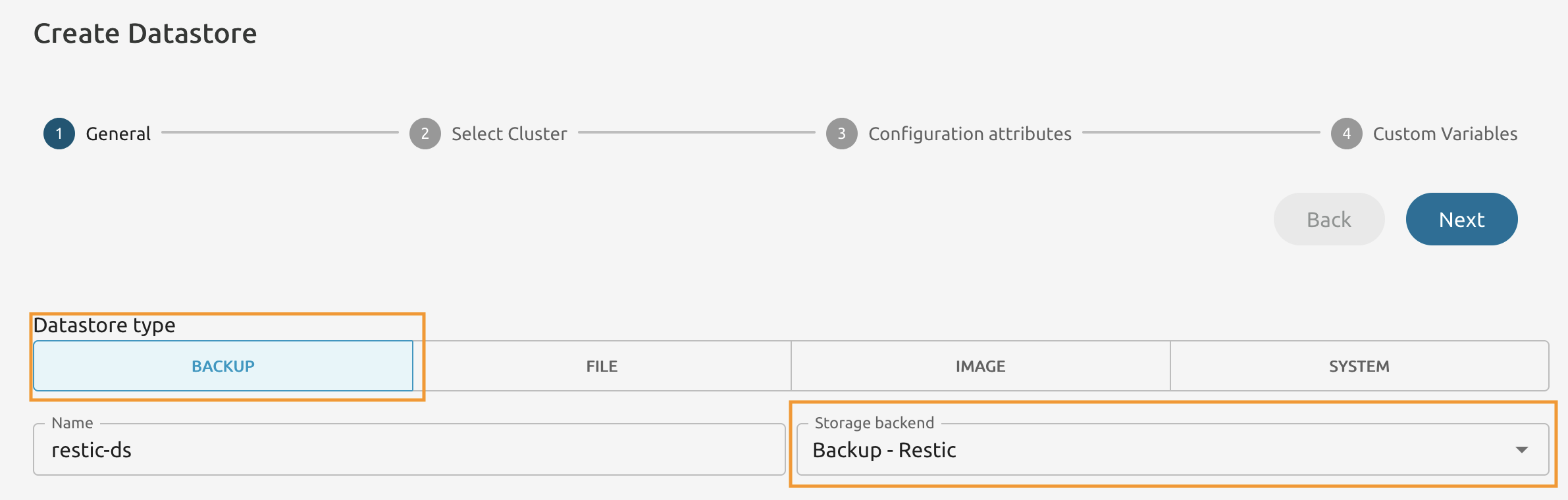
Set the Datastore Type to Backup.
From the Storage backend drop-down list select Backup - Restic.
Name it the way you wish, however in this guide we’re going to refer as restic-ds.
5.2.5
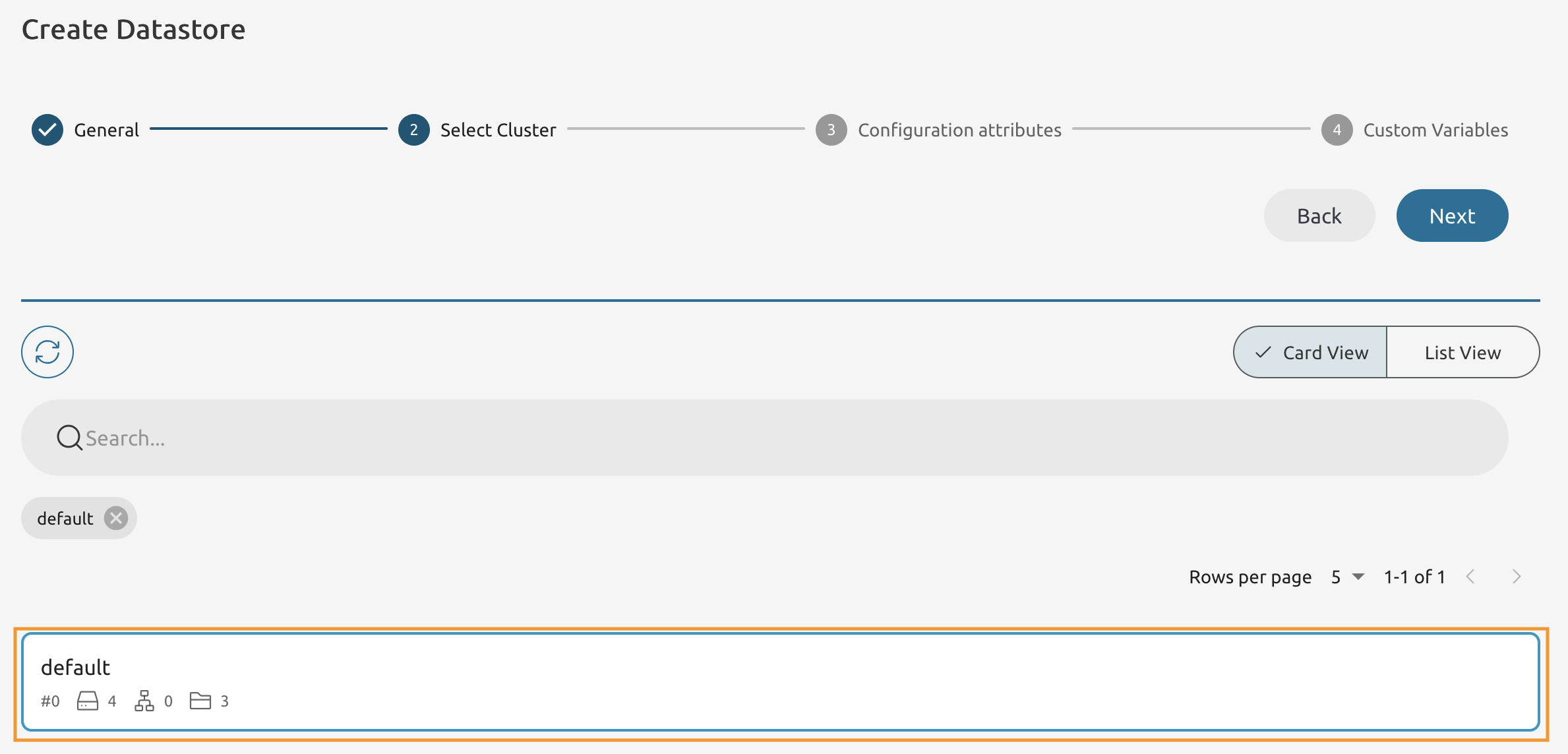
On the Select Cluster page choose the default cluster.
5.2.6
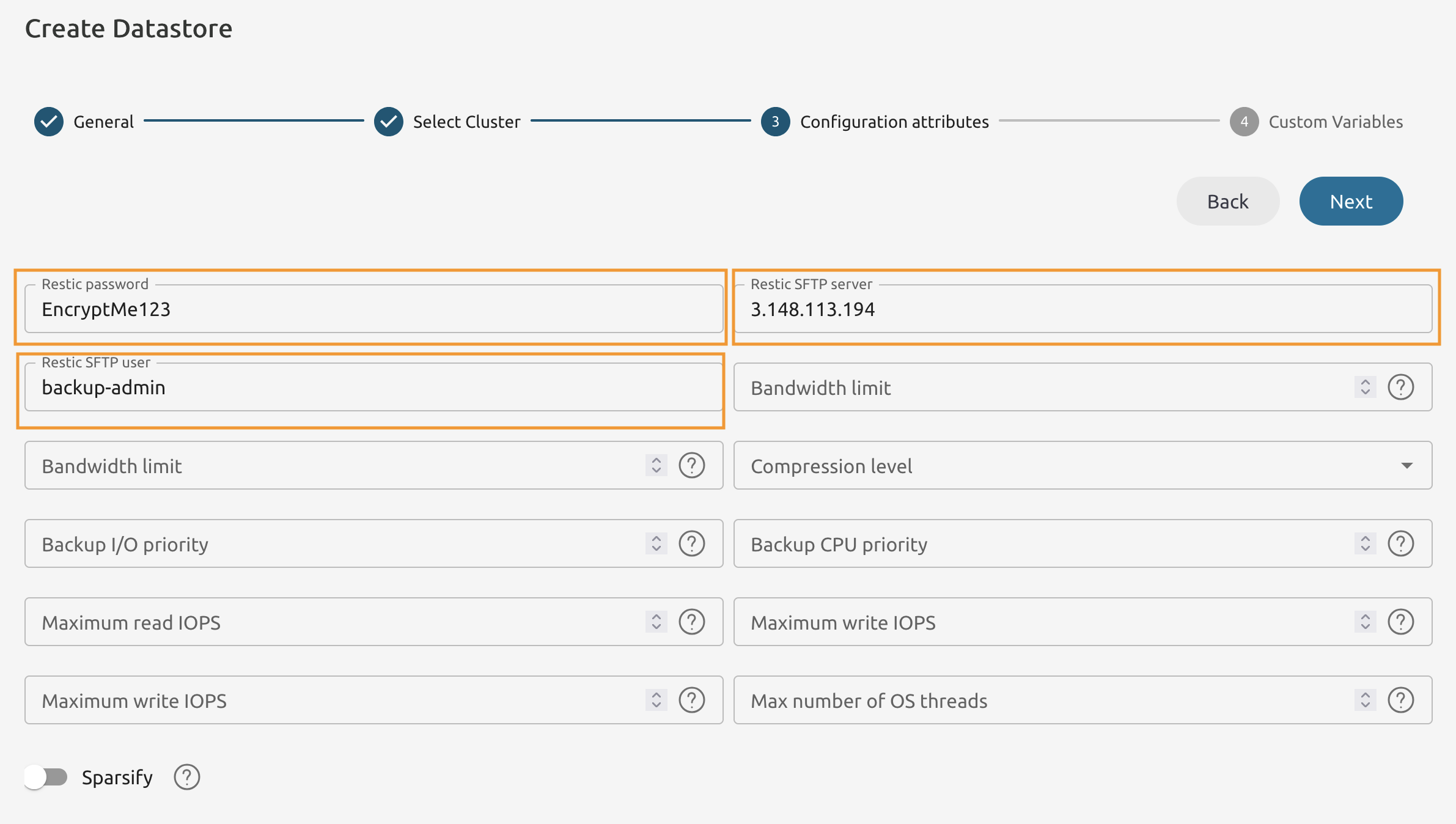
Set the Restic SFTP user to backup-admin.
Fill the Restic SFTP server field with the IP address of your backup server host!
And set the Restic password to a value, that will be used to encrypt backups at rest.
5.2.7
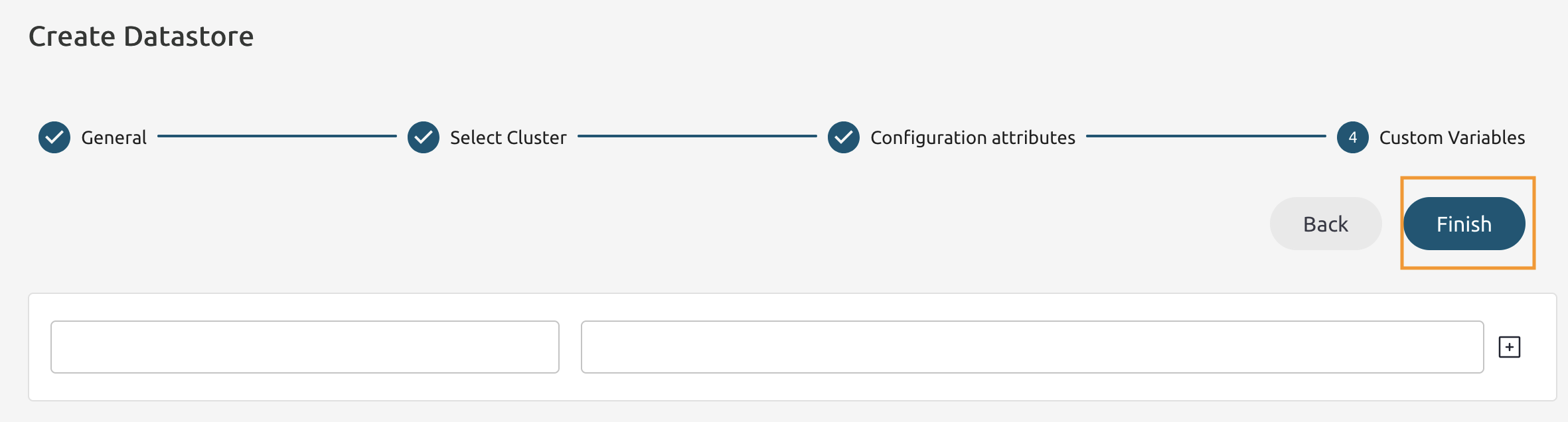
Leave the Custom Variables as is and press Finish.
5.2.8
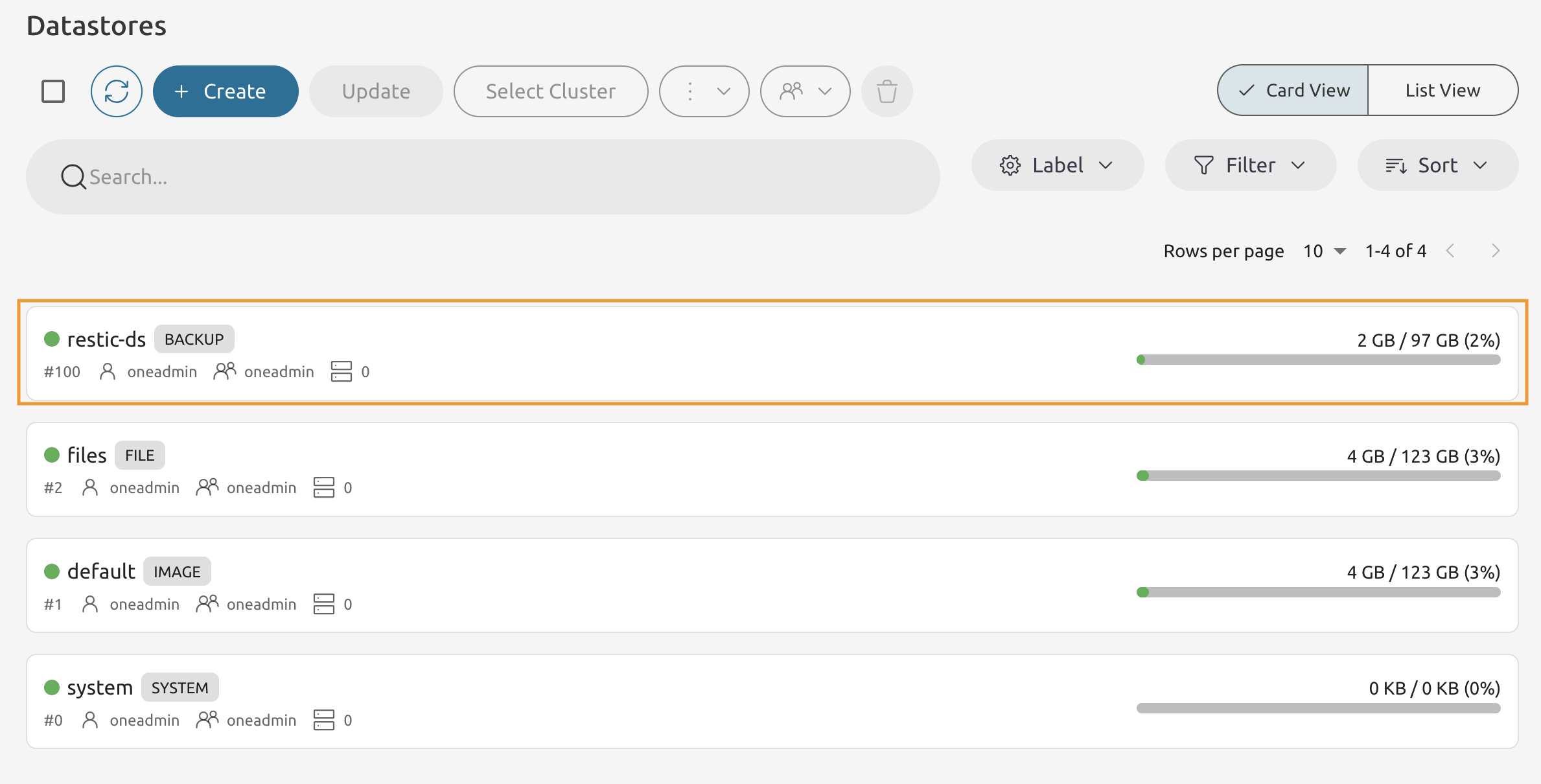
If you completed the actions correctly, you will see the new datastore tagged with the BACKUP tag.