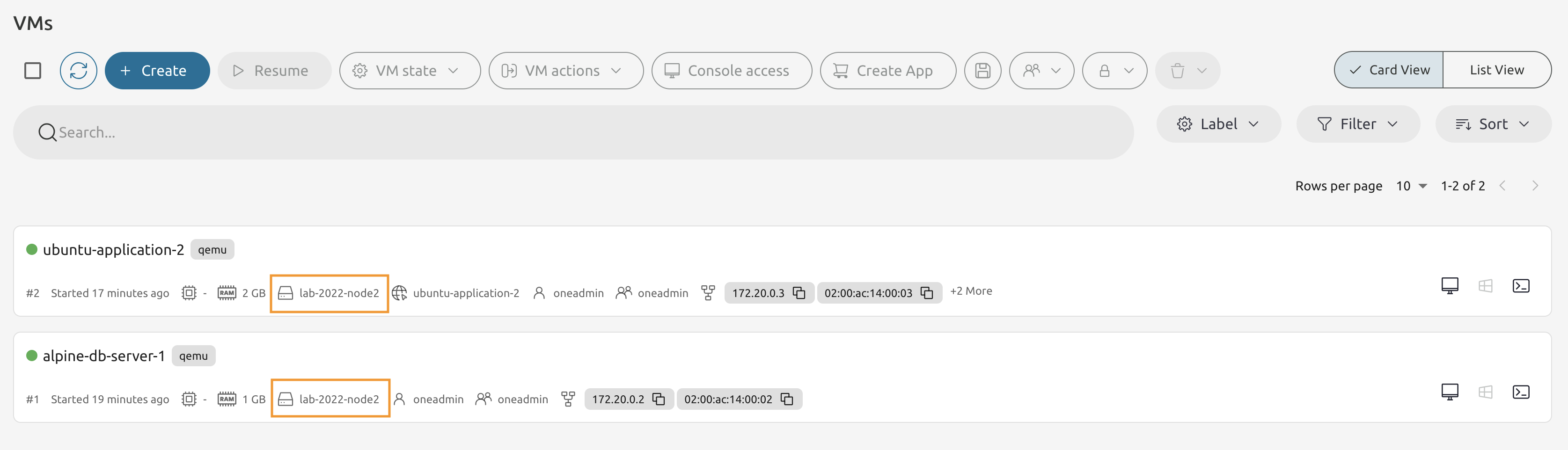
Module 8 - Lab 4 : VM Operations
Table of Contents
Expand to access the In-page navigation
Objective(-s):
- Perform the Backup, Recover - Recreate & Restore actions.
- Migare the VM.
Perform the Backup, Recover - Recreate & Restore actions
8.4.1
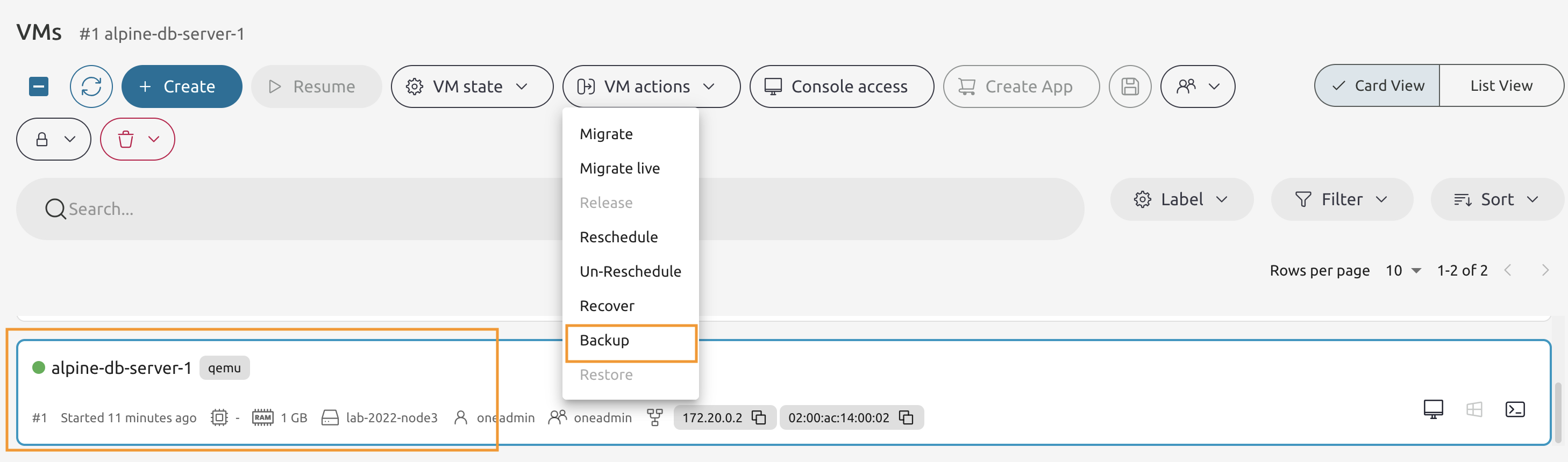
Select the alpine-db-server VM and from the VM actions drop-down list pick the Backup option.
8.4.2
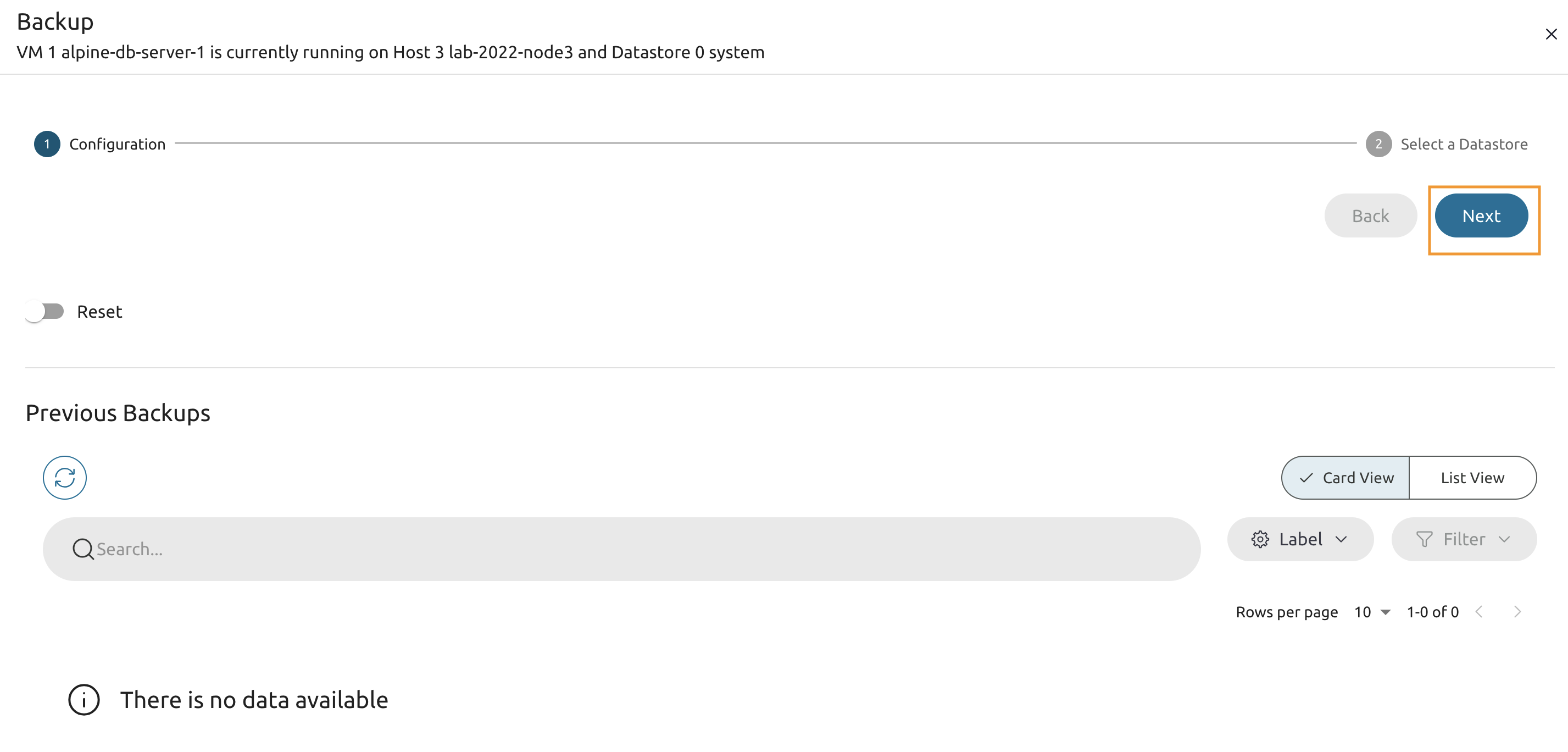
There are no backups made yet, so proceed to the next page.
8.4.3
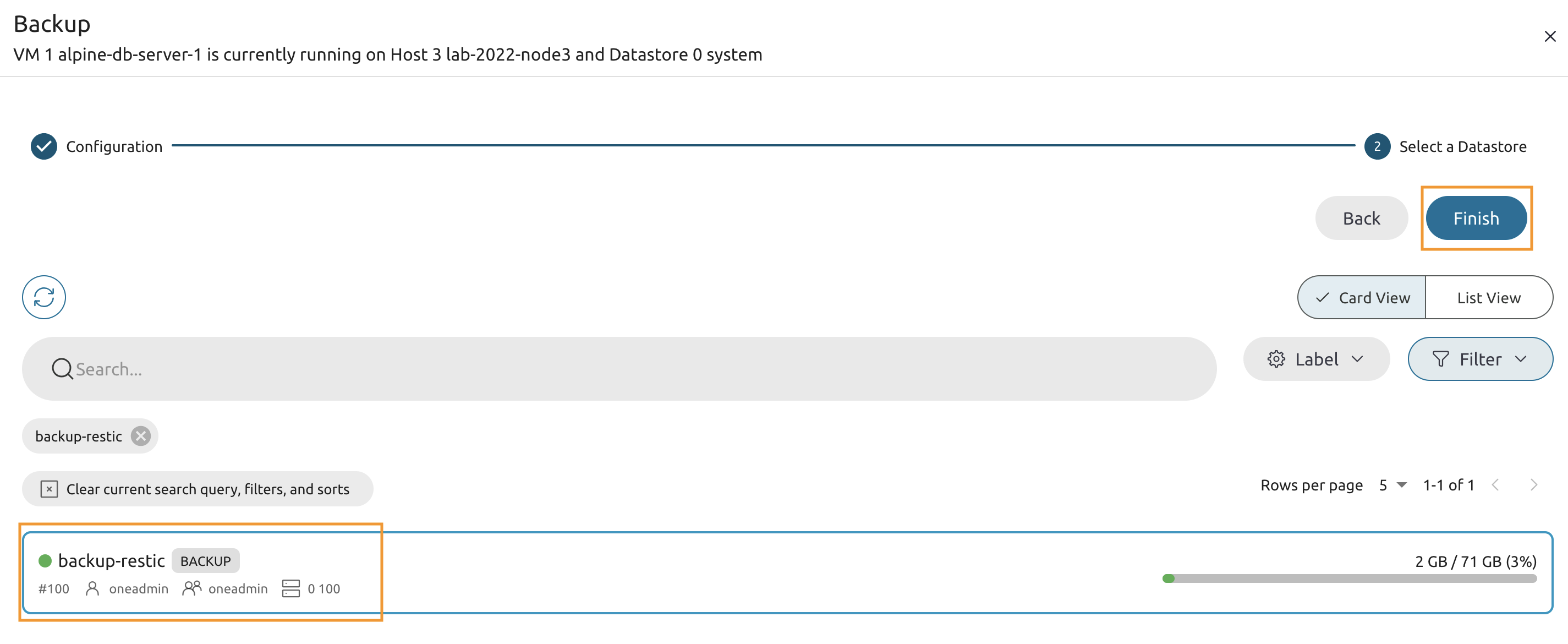
Select the backup datastore and proceed with Finish.
8.4.4
Wait until the VM is back to the RUNNING state.
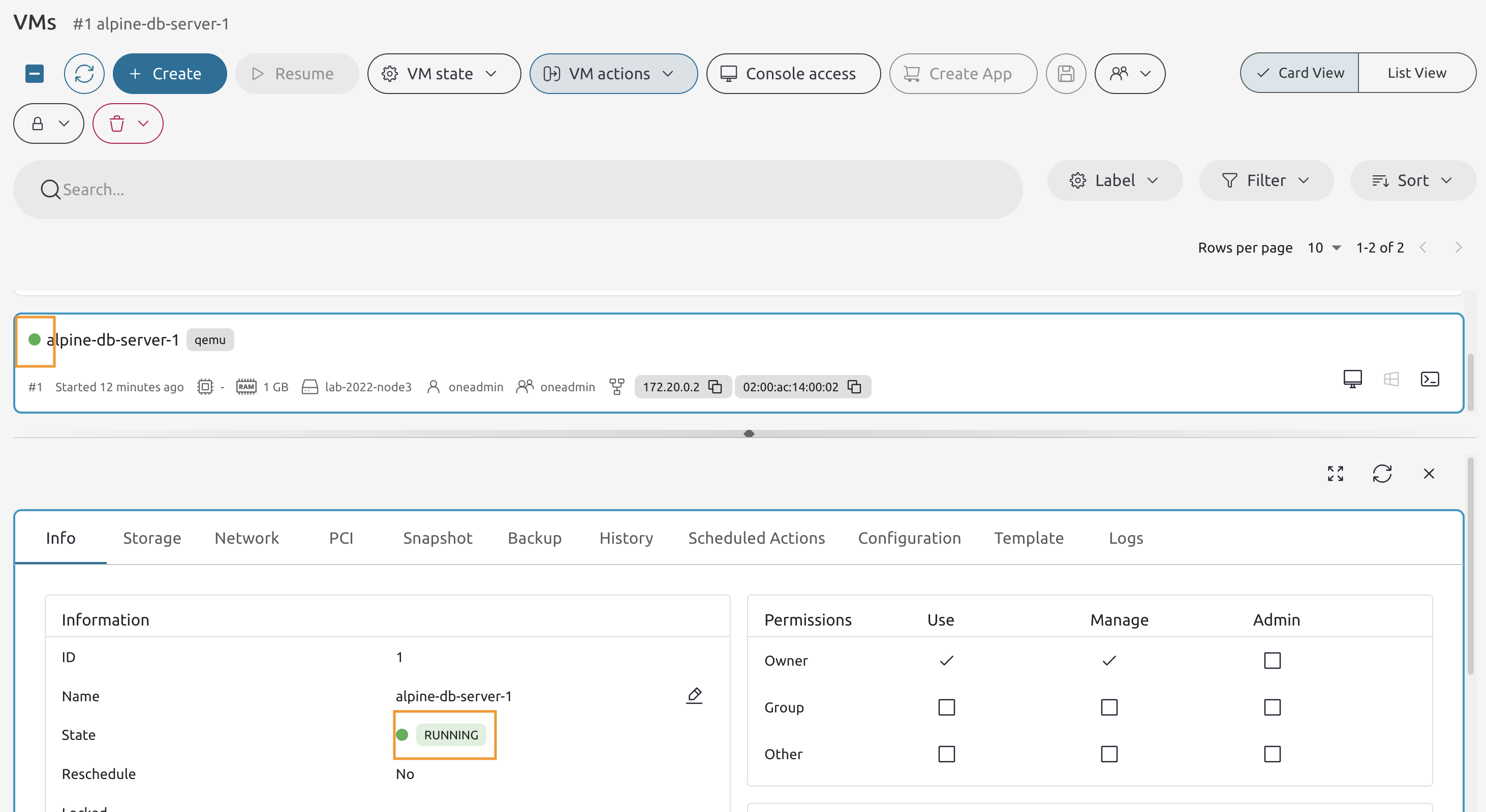
8.4.5
From the VM actions drop-down list select the Recover option.
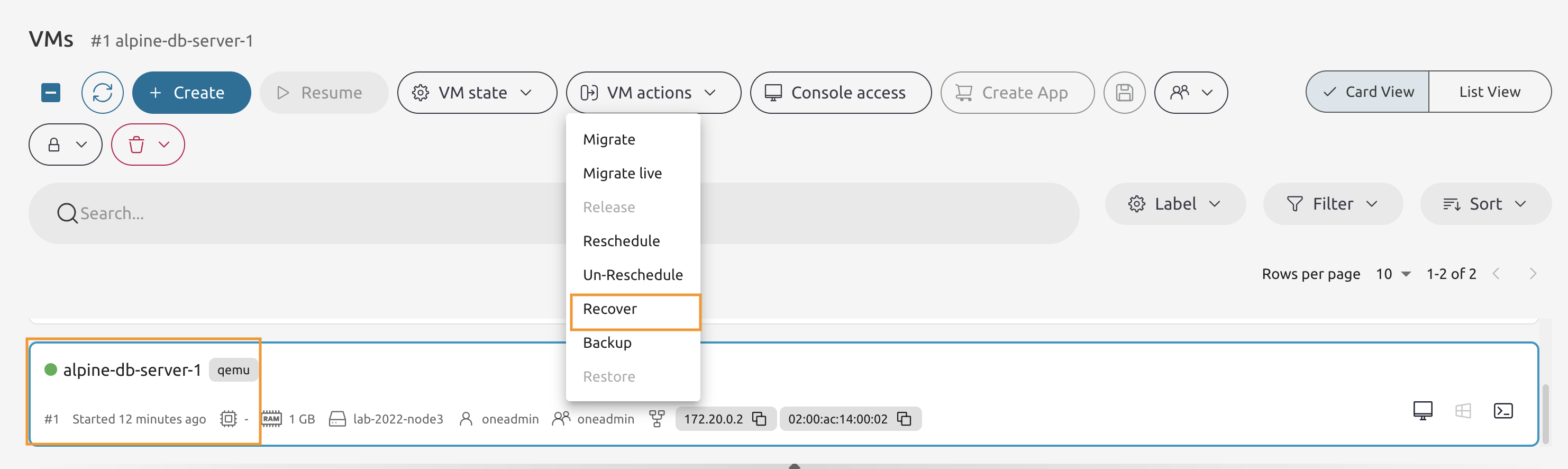
8.4.6
Select the Recreate option from the list and press the Accept button.
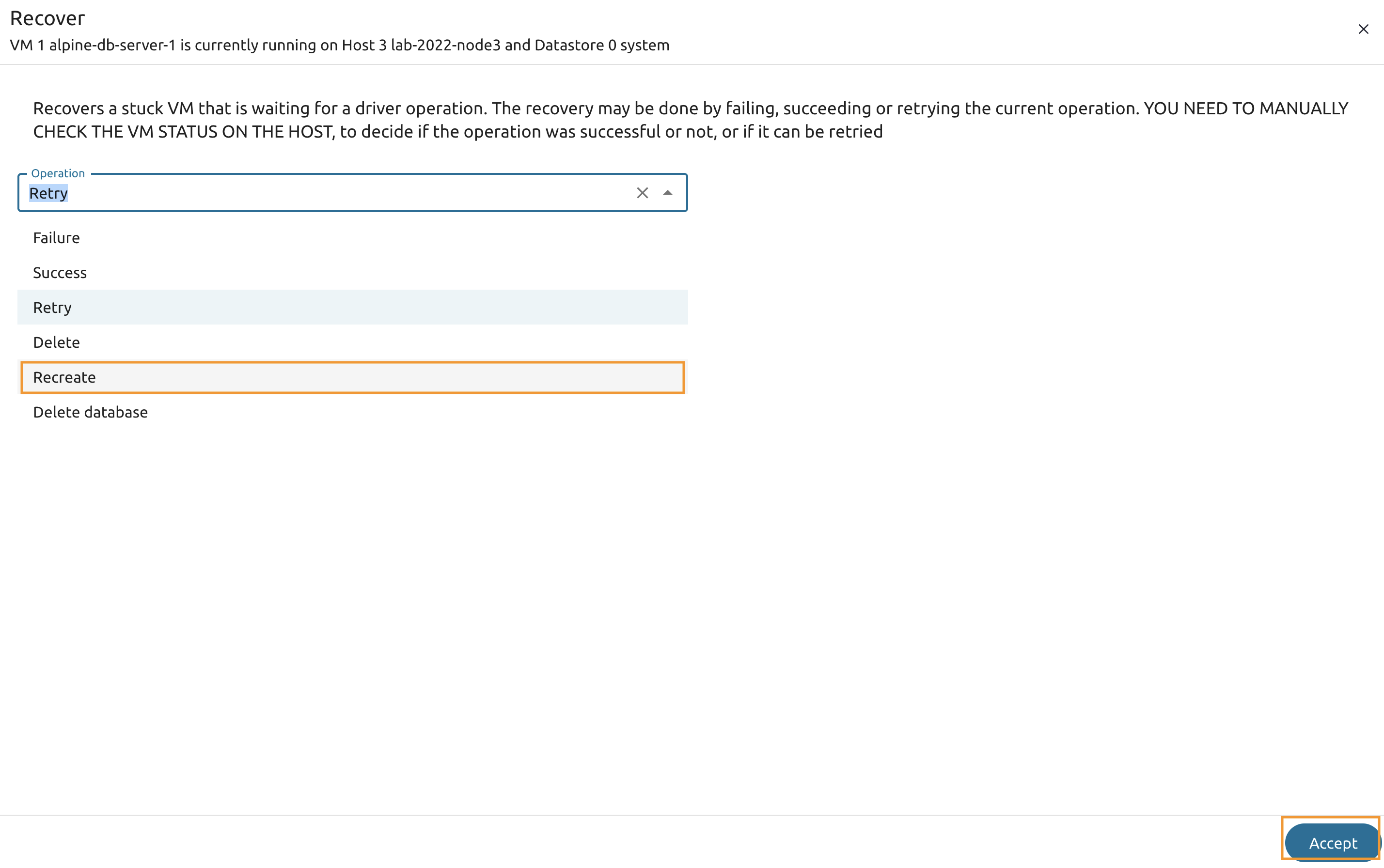
8.4.7
Wait untl the VM is in the RUNNING state.
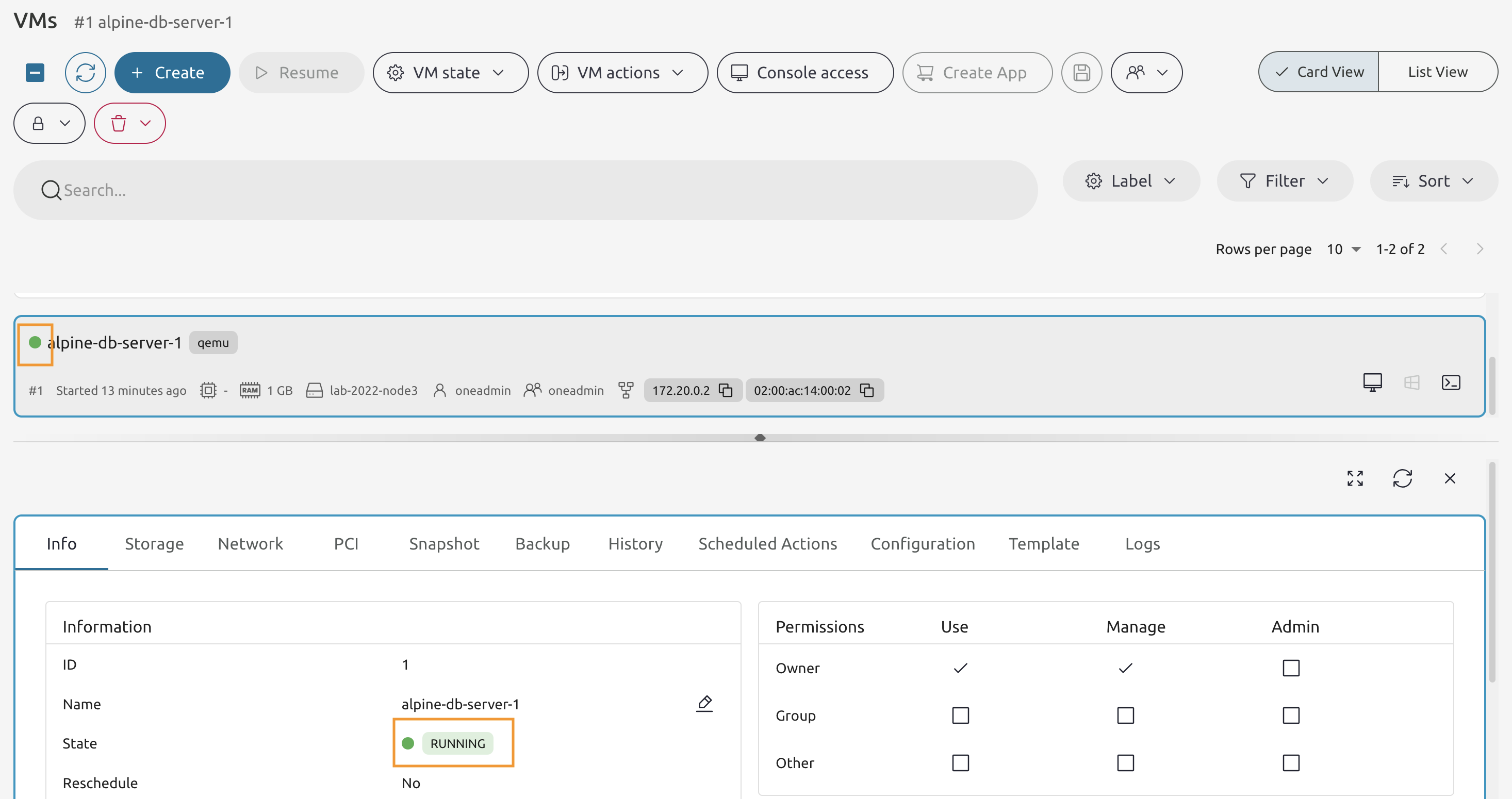
8.4.8
Go back to an app’s /get-data page.
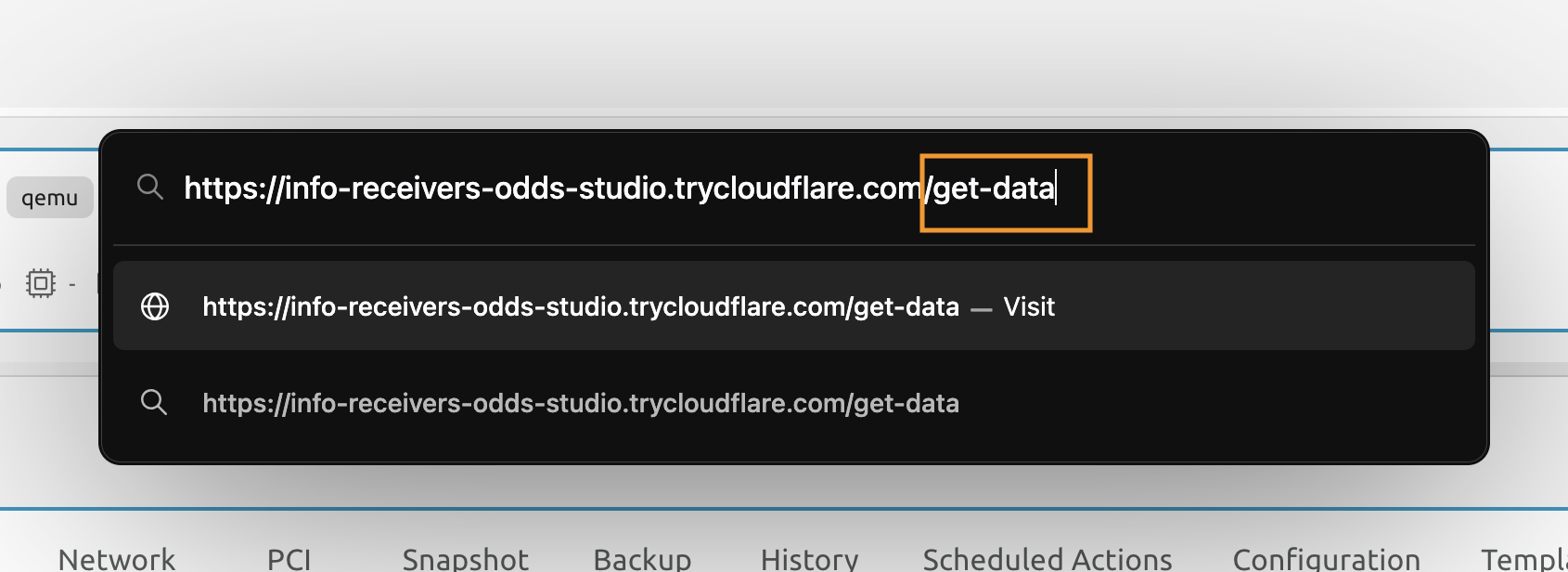
8.4.9
You should get the connection error. That’s because the VM was recreated to its initial state and all changes were wiped out.
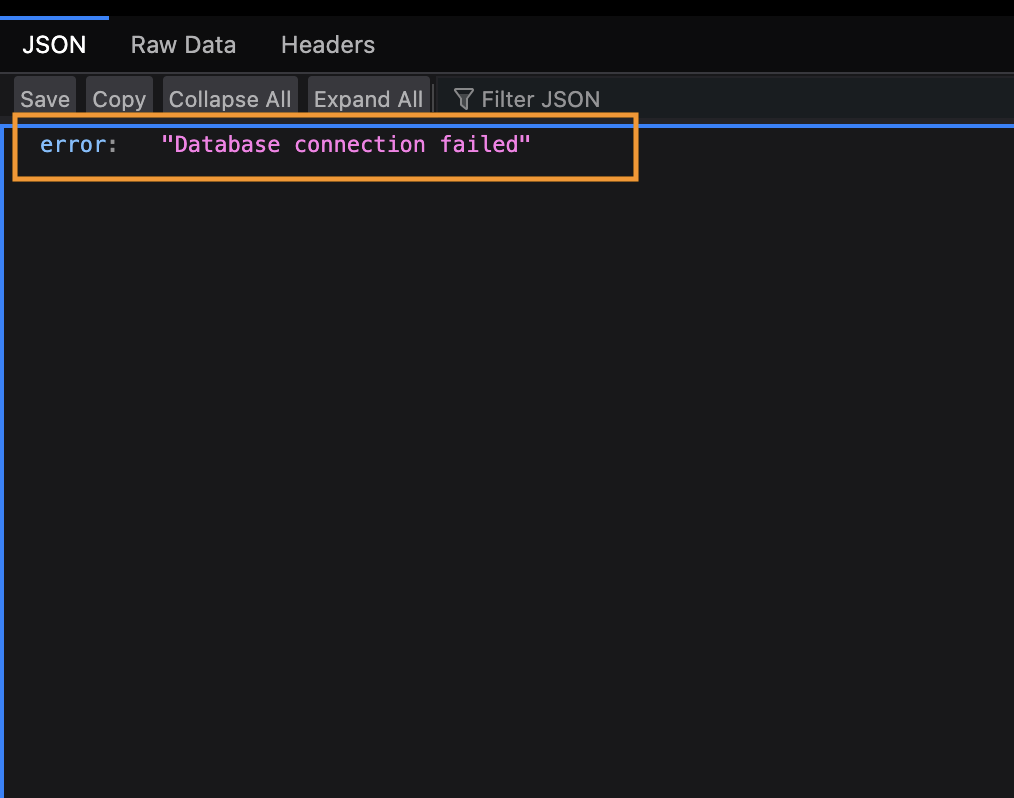
8.4.10
Go back to the VMs page and power off the alpine-db-server VM.
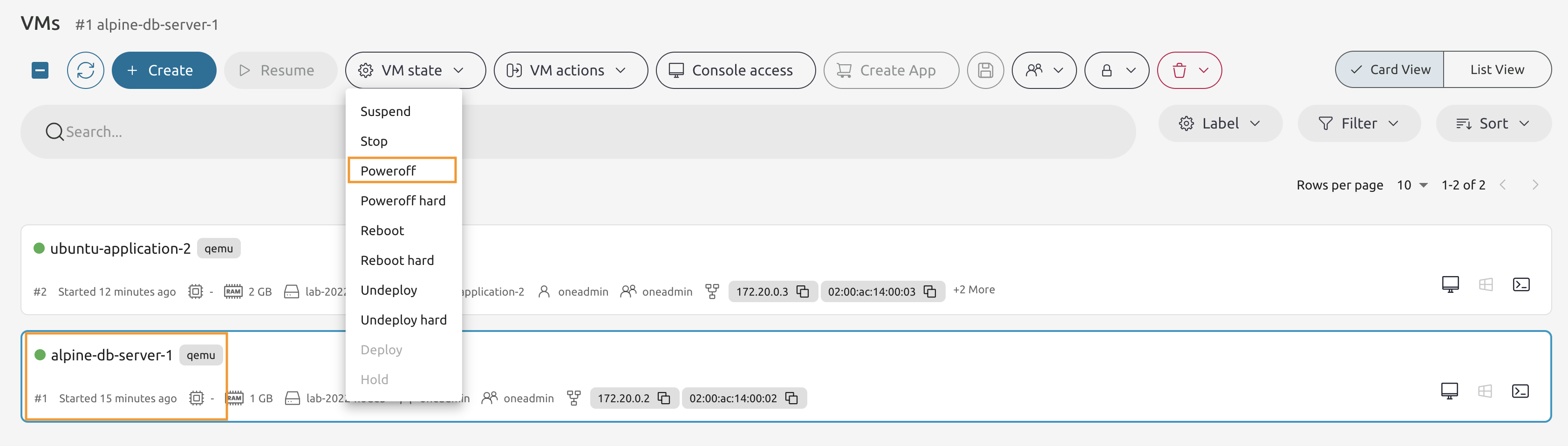
8.4.11
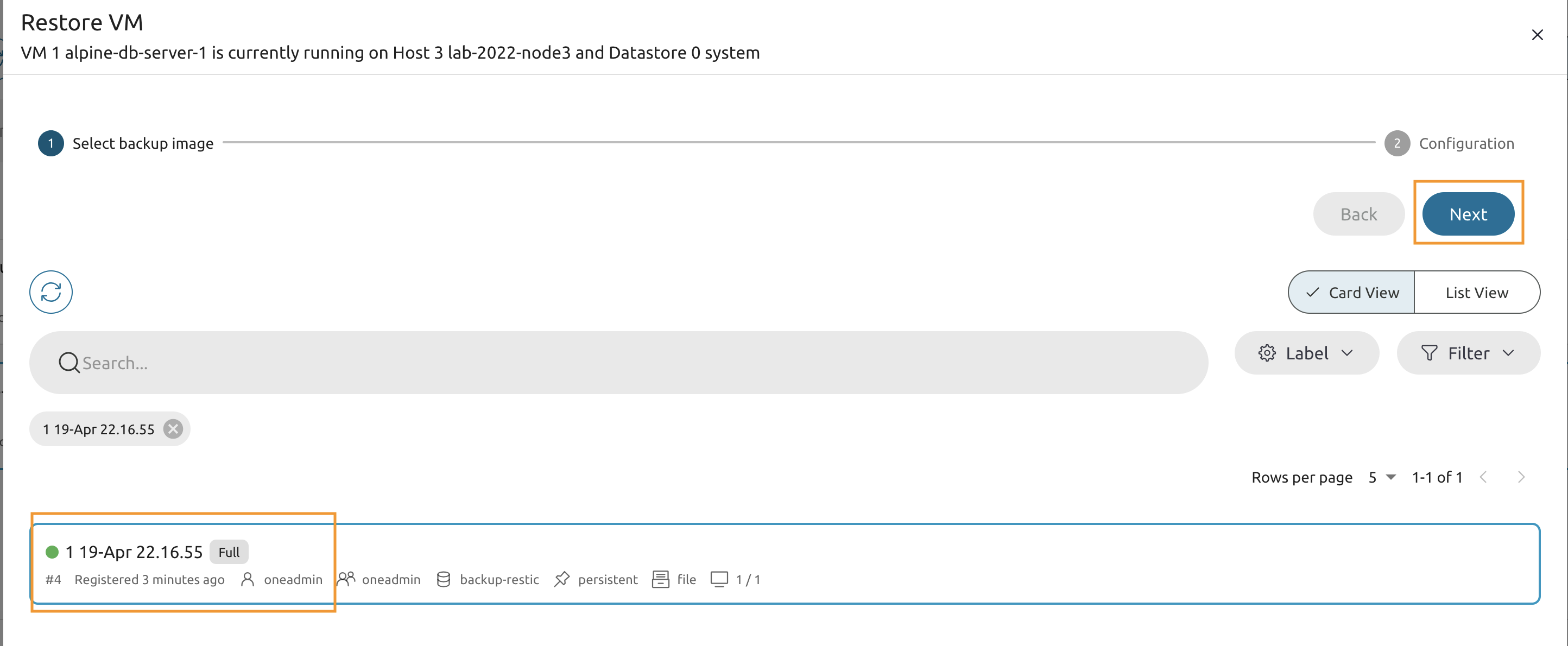
Once the VM is powered off - from the *8VM actions** drop-down list select the Restore option.
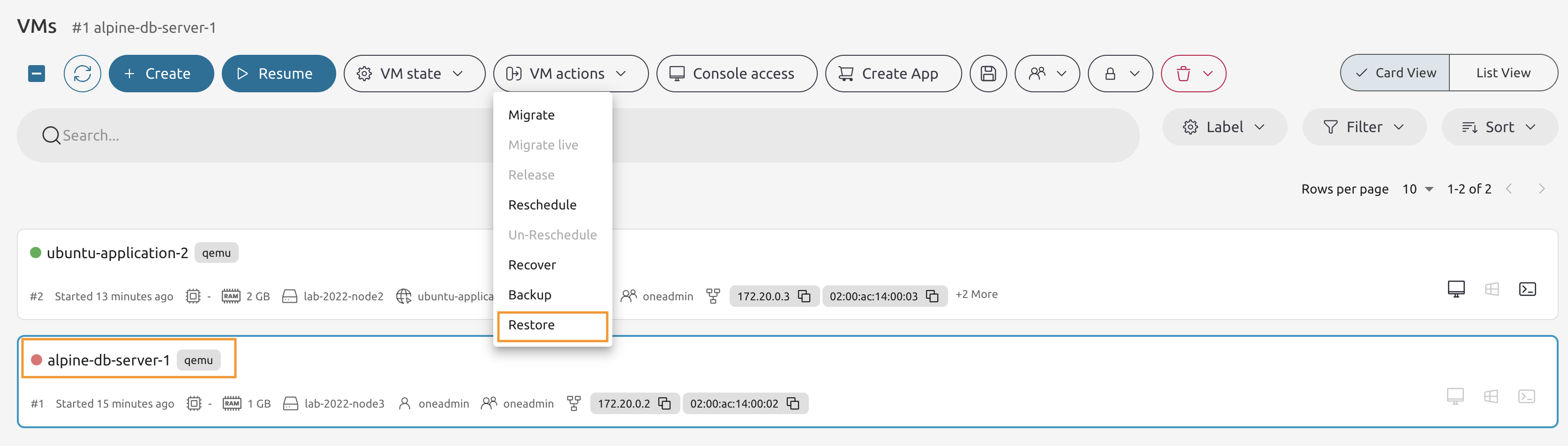
8.4.12
Select the backup to restore from the list and press the Next button.
8.4.13
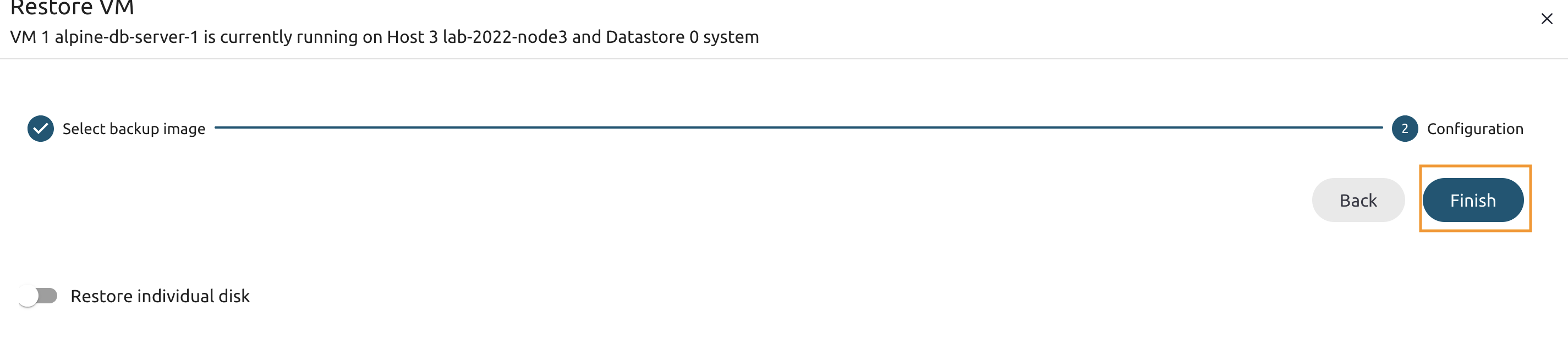
Do not change anything on this page and Finish the process.
8.4.14
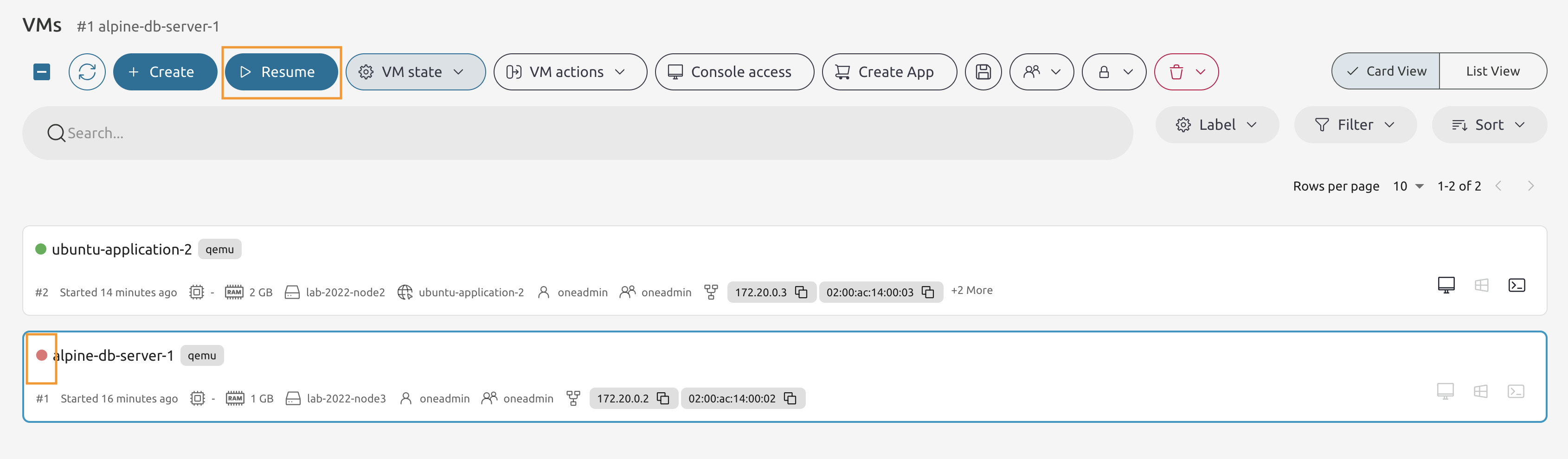
Wait until the VM is back to the power off* state and press the **Resume button.
8.4.15
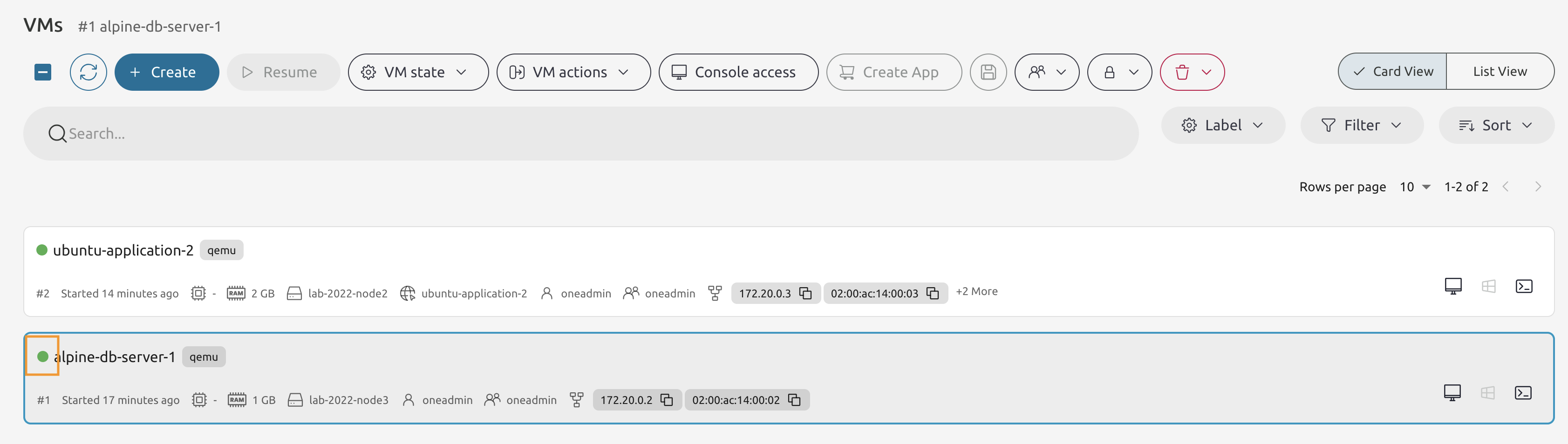
Wait until the VM is the RUNNING state and give the OS a few more minutes to boot.
8.4.16
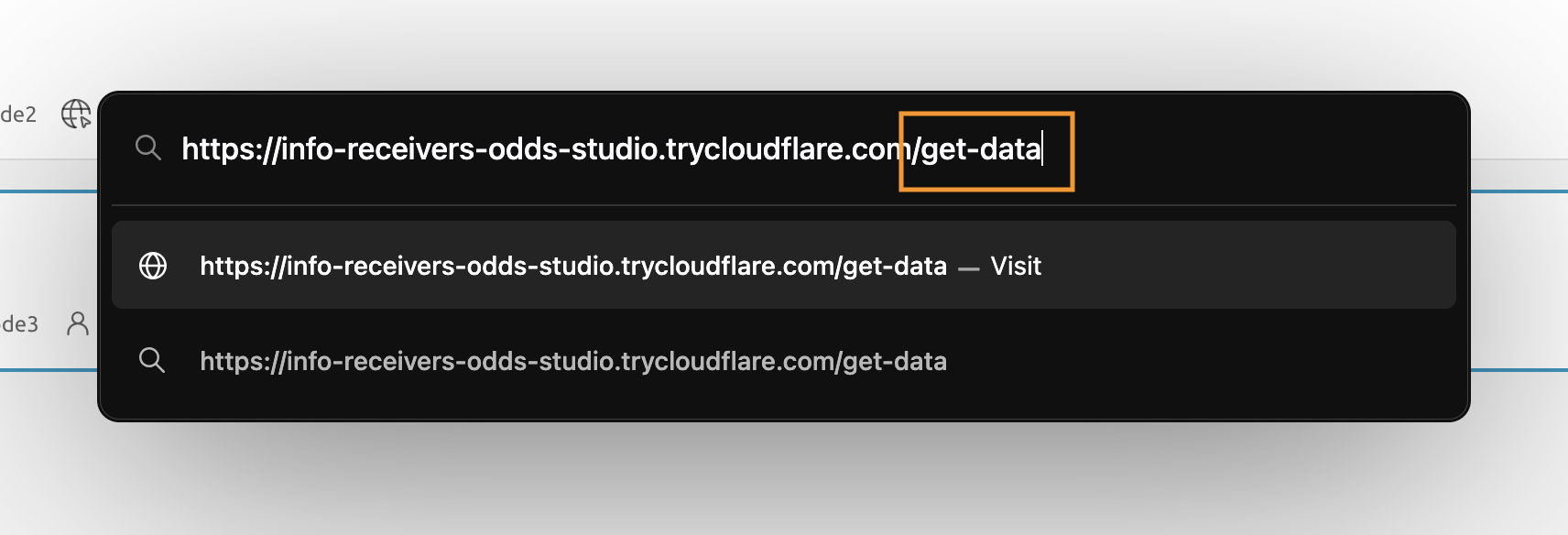
Visit the /get-data page once again.
8.4.17
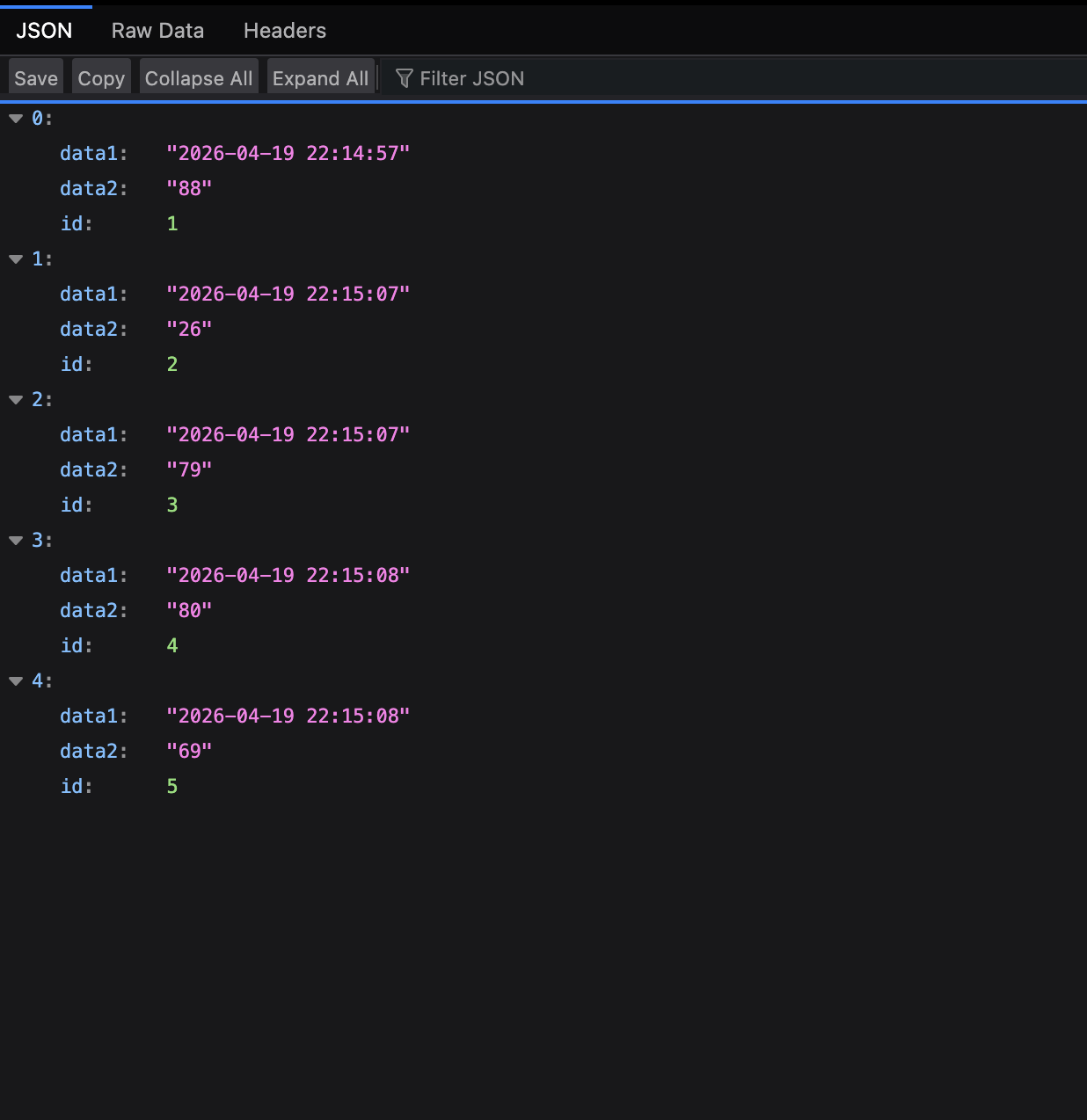
You supposed to have the printout with the data. If you have the connection error message - give it a few more minutes and then refresh the page.
Migare the VM.
8.4.18
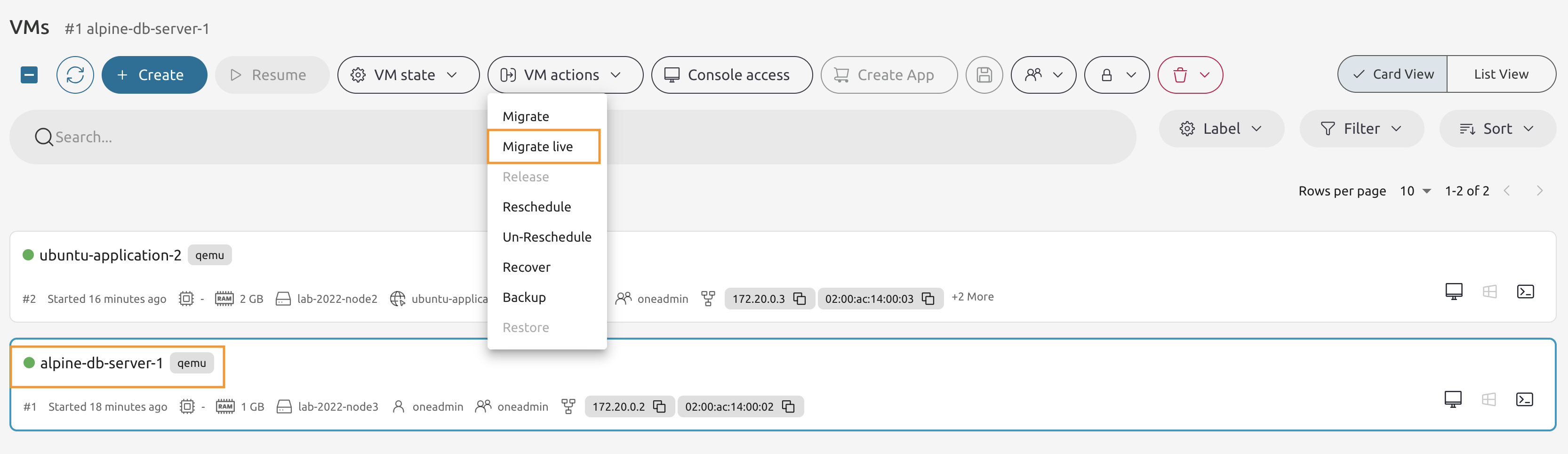
On the VMs page select the alpine-db-server VM and from the *VM Actions** drop-down list choose the Migrate live option.
8.4.19
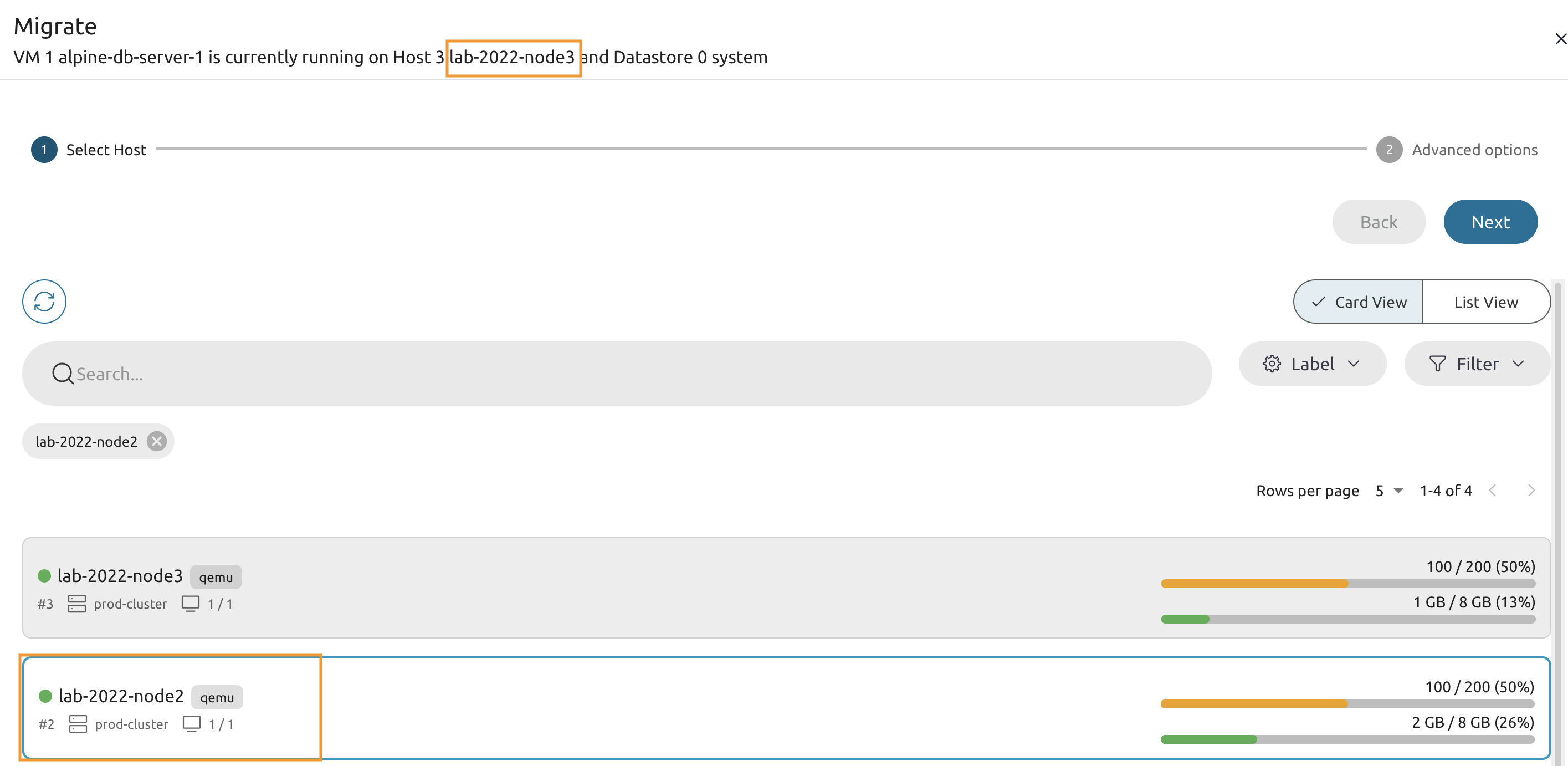
Select the opposite host from the list.
8.4.20
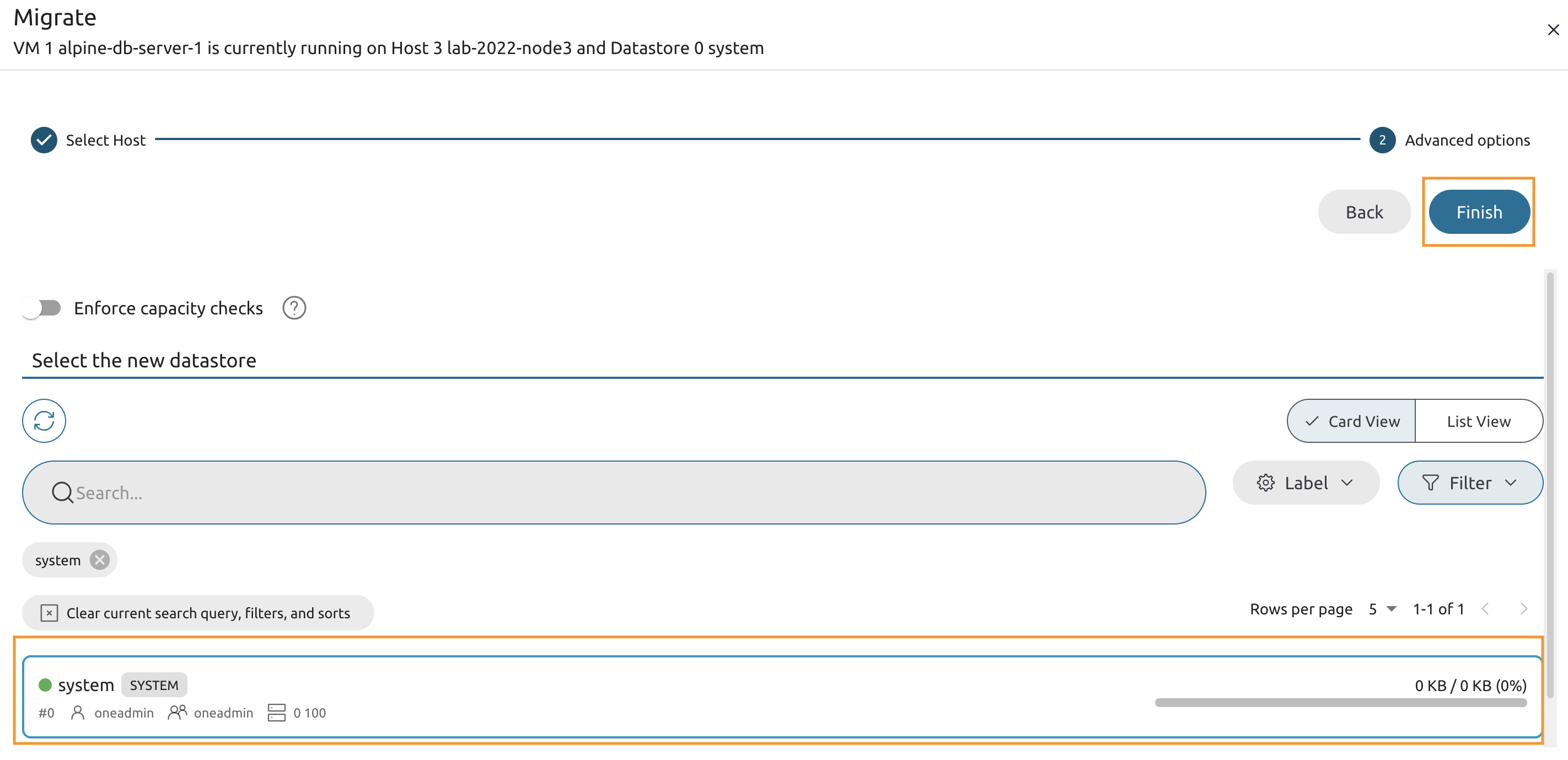
Select the system datastore and press the Finish.
8.4.21
Wait until the VM is migrated and verify that both VMs are now running on the same host.