Module 5 - Lab 3 : Image Management
Table of Contents
Expand to access the In-page navigation
Objective(-s):
- Download an Image from the Marketplace.
- Locate the actual Image on the datastore.
- Import an Image from the URL.
- Create an empty Image.
- Change the Persitency of an Image.
Download Images from the Marketplace.
5.3.1
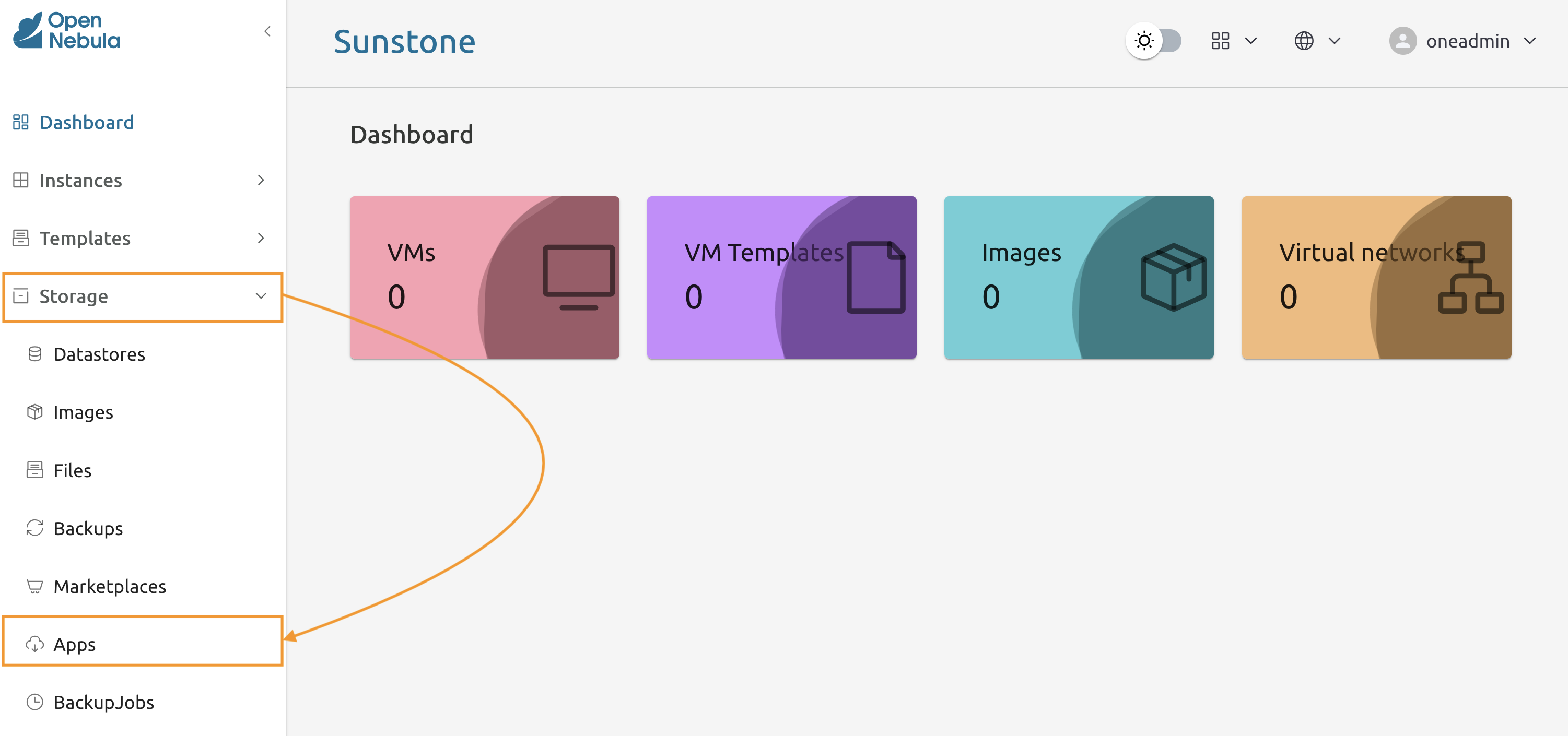
Navigate to Storage -> Apps to access the list of available Images in the Marketplaces.
5.3.2
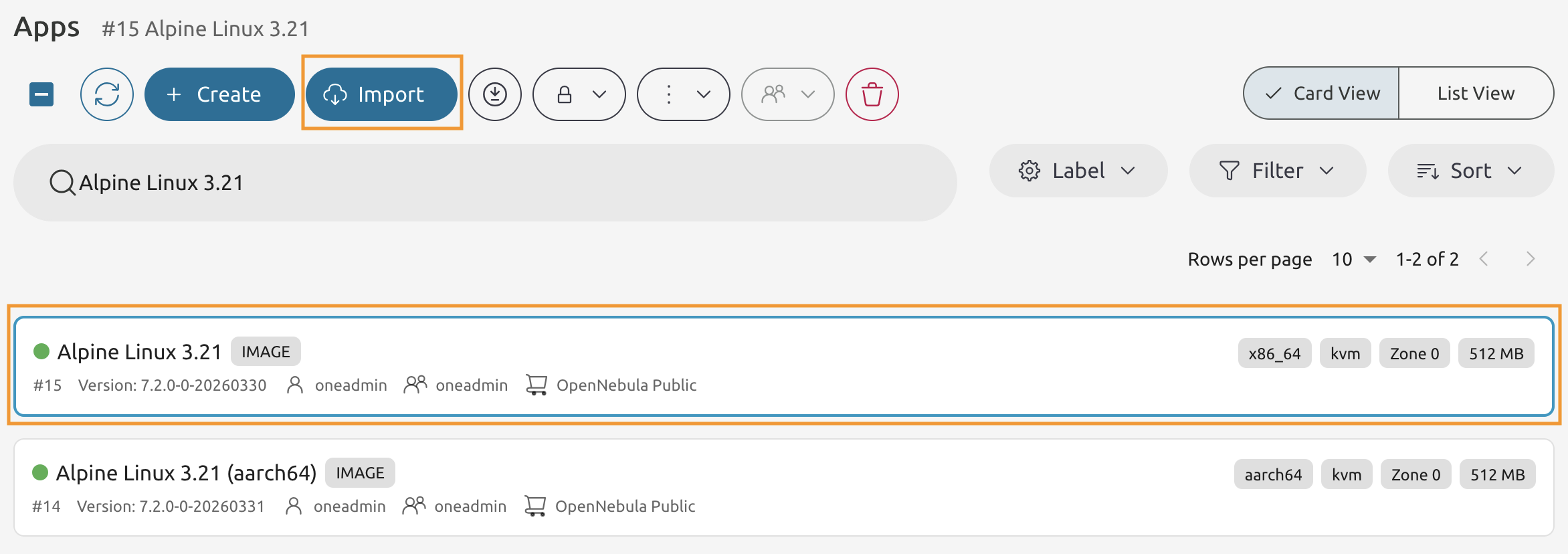
In the search bar enter Alpine Linux 3.21 and locate the Alpine Linux 3.21 image.
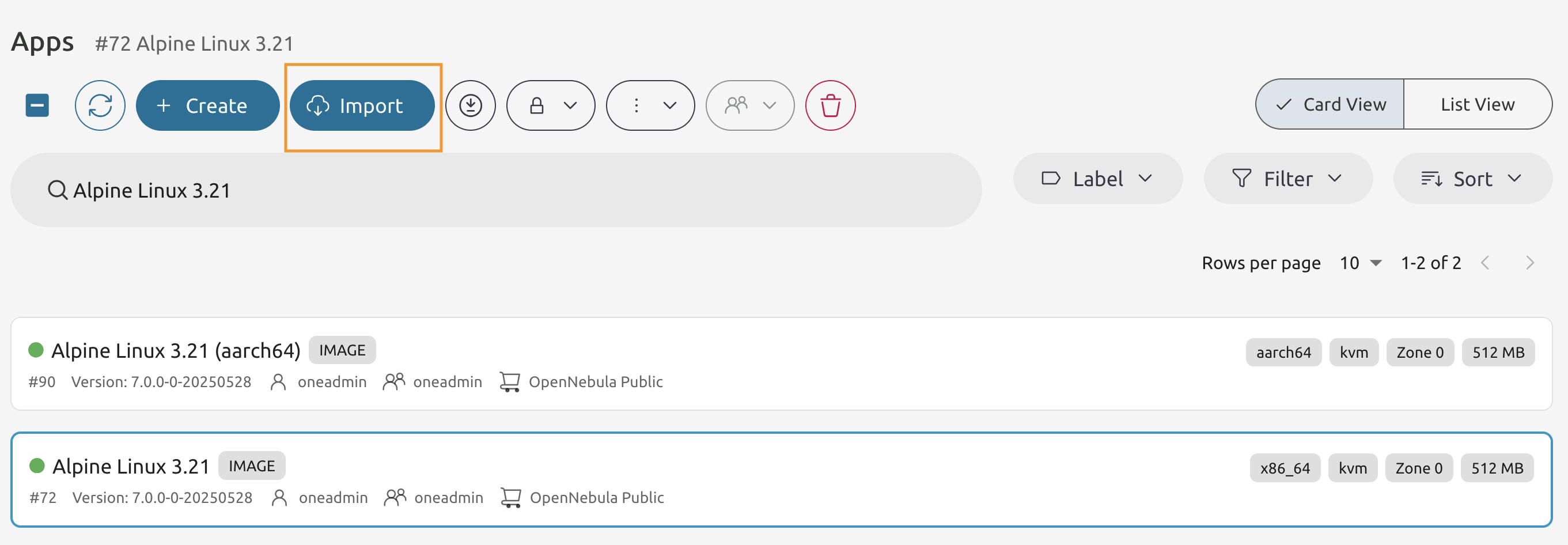
Please select the correct architecture!
5.3.3
Select the Alpine Linux 3.21 with the correct architecture and press Import button.
5.3.4
Keep the names as is, then proceed to the next page of the wizard.
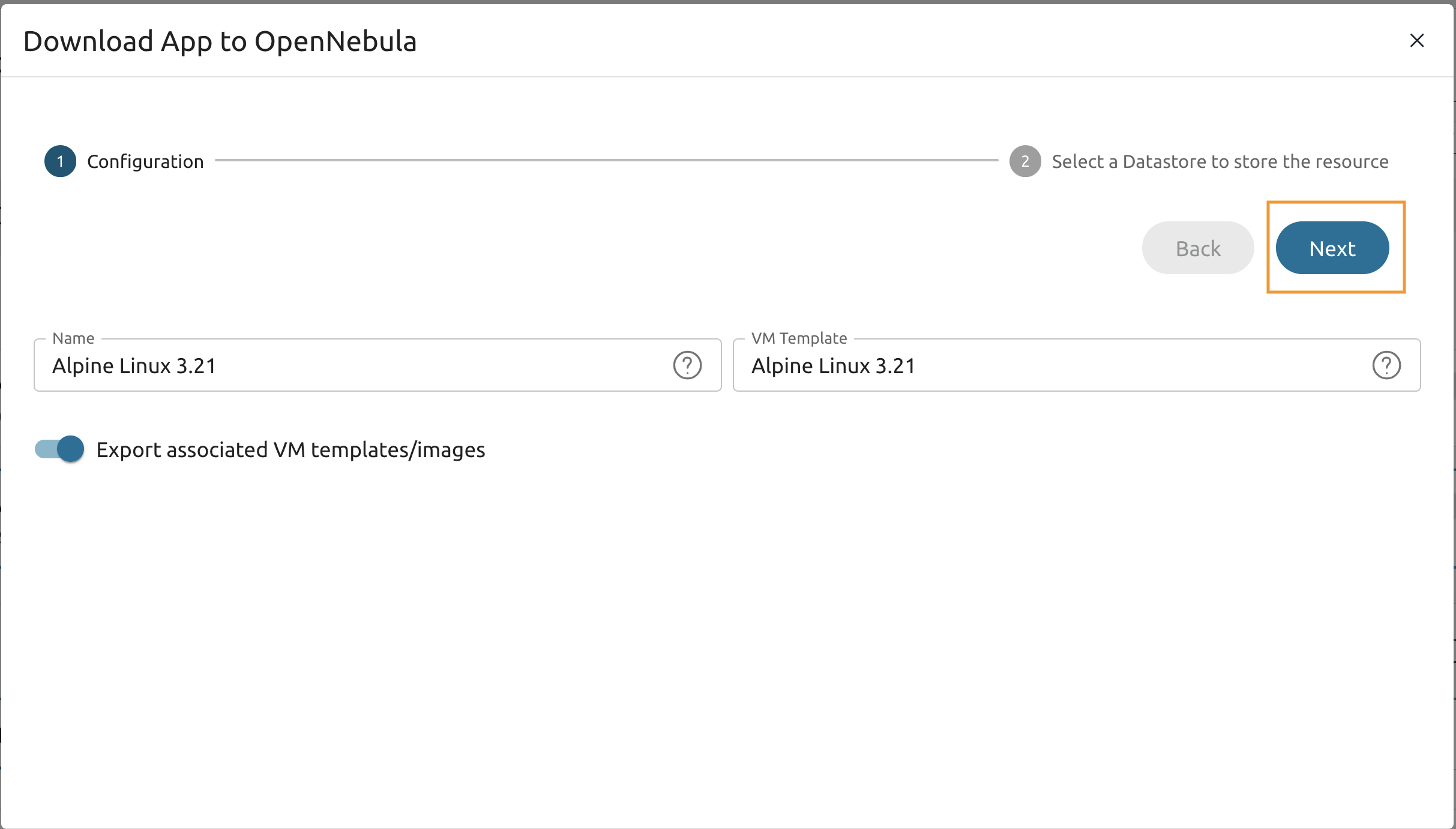
5.3.5
From the datastores select the default one and press Finish.
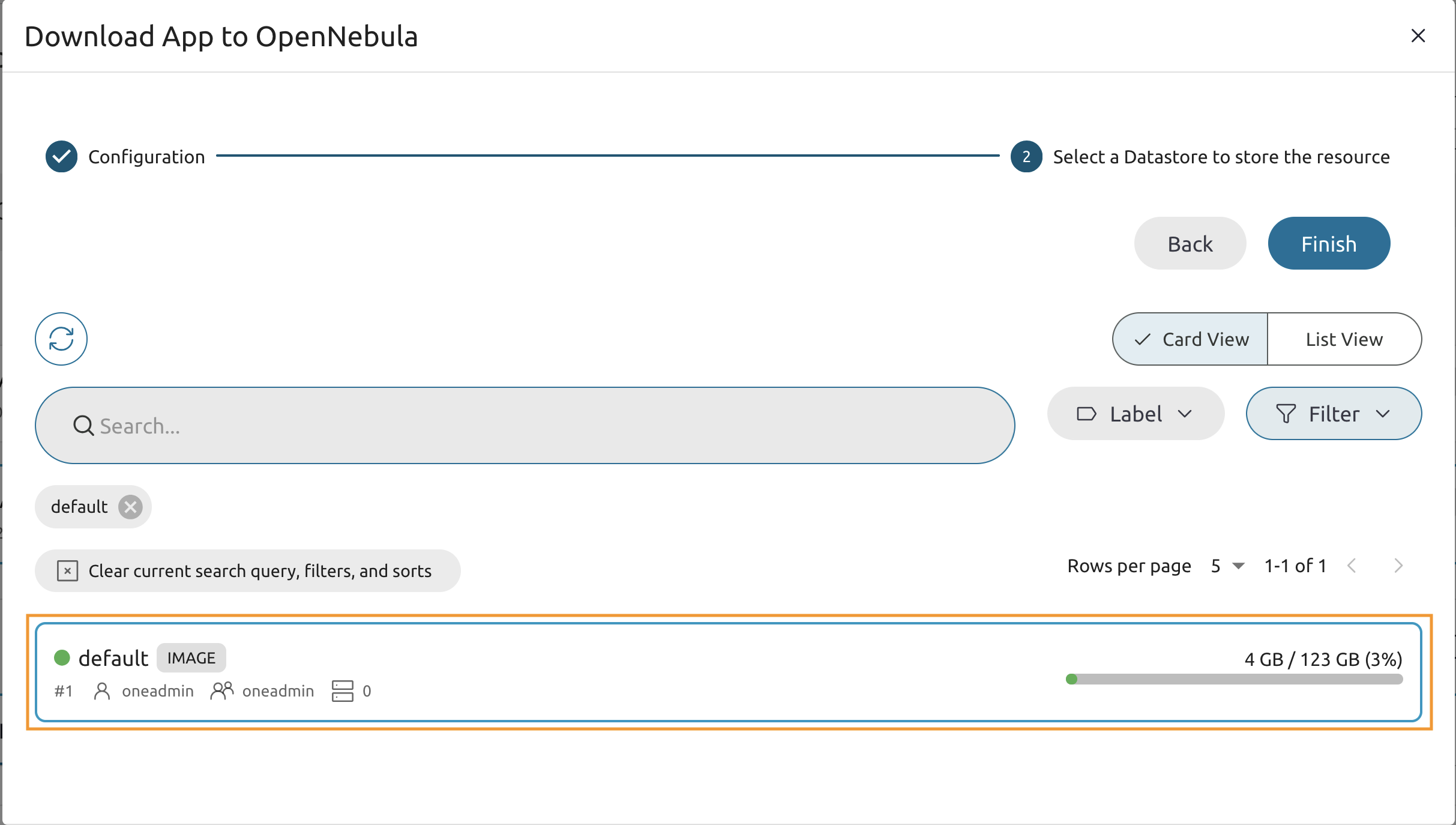
5.3.6
Go to the Node 1’s Command Line and and list the currently available images.
oneimage list

ID USER     GROUP    NAME                 DATASTORE     SIZE TYPE PER STAT RVMS
0 oneadmin oneadmin Alpine Linux 3.21     default       512M OS    No rdy     0
5.3.7
While in the Node 1’s Command Line use the onemarketapp command to import the Ubuntu 24.04 Image.
onemarketapp export 'Ubuntu 24.04' 'Ubuntu 24.04' -d 1

IMAGE
    ID: 1
VMTEMPLATE
    ID: 1
Execute the oneimage command one more time
oneimage list

ID USER     GROUP    NAME                    DATASTORE     SIZE TYPE PER STAT RVMS
1 oneadmin oneadmin Ubuntu 24.04             default       3.5G OS    No rdy     0
0 oneadmin oneadmin Alpine Linux 3.21        default       512M OS    No rdy     0
Locate the actual Image on the datastore.
5.3.8
Use the oneimage Command Line to show the extended information on the Alpine Linux 3.21 image.
Copy the SOURCE value.
oneimage show 0

IMAGE 0 INFORMATION
ID             : 0
NAME           : Alpine Linux 3.21
USER           : oneadmin
GROUP          : oneadmin
LOCK           : None
DATASTORE      : default
TYPE           : OS
REGISTER TIME  : 04/16 10:11:43
LAST MODIFIED  : 04/16 10:11:43
PERSISTENT     : No
SOURCE         : /var/lib/one//datastores/1/e4b9bd2b837e18df15013f380f1e631f
PATH           : https://marketplace.opennebula.io/appliance/9ea07f80-beb8-013d-a75b-7875a4a4f528/download/0
FORMAT         : qcow2
...
5.3.9
Use the file command to check the file data.
Please use the SOURCE from your previous output!
file <SOURCE> |  cut -d ':' -f 2
    QEMU QCOW Image (v3), 536870912 bytes, AES-encrypted (v3), 536870912 bytes
Import an Image from the URL.
5.3.10
Navigate to the Storage -> Images.
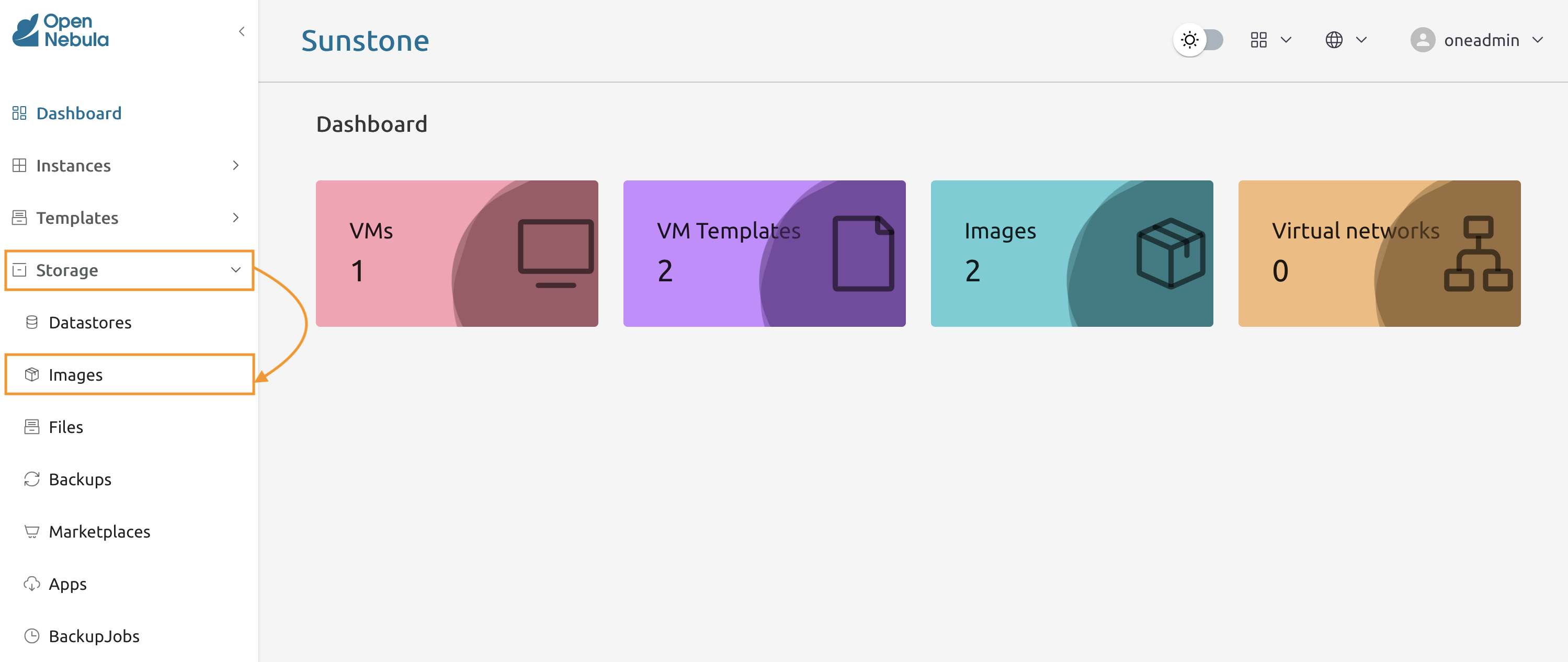
5.3.11
Press Create to start the wizard.
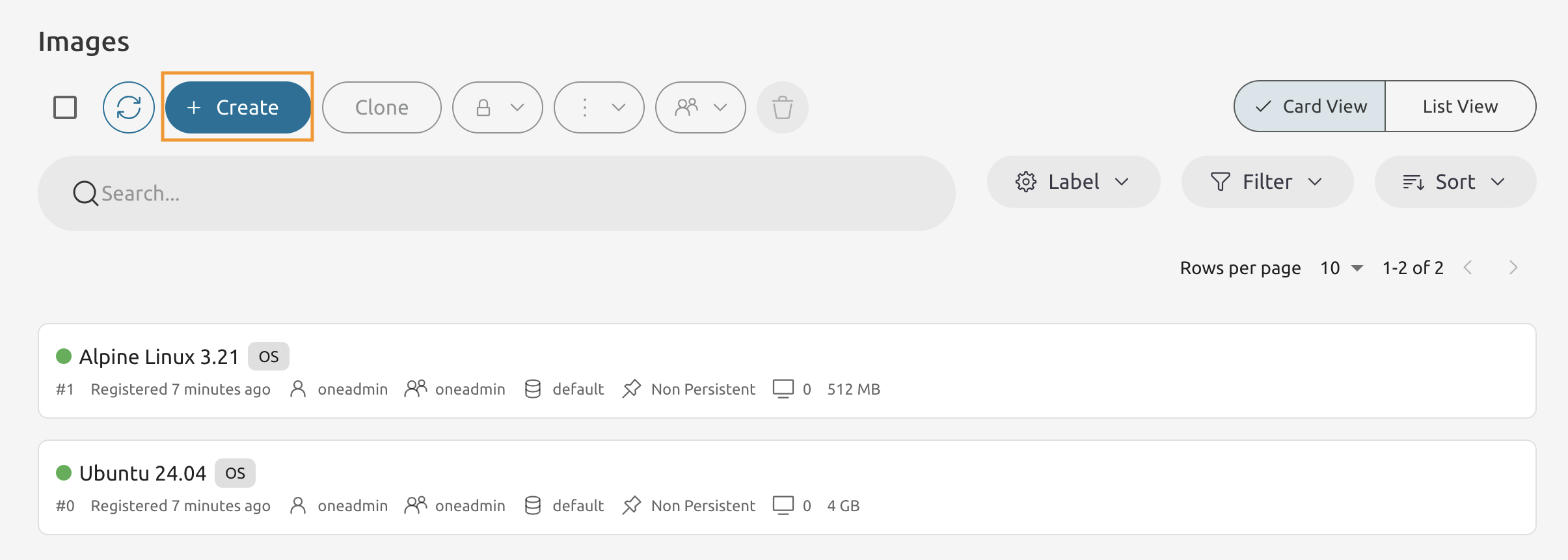
5.3.12
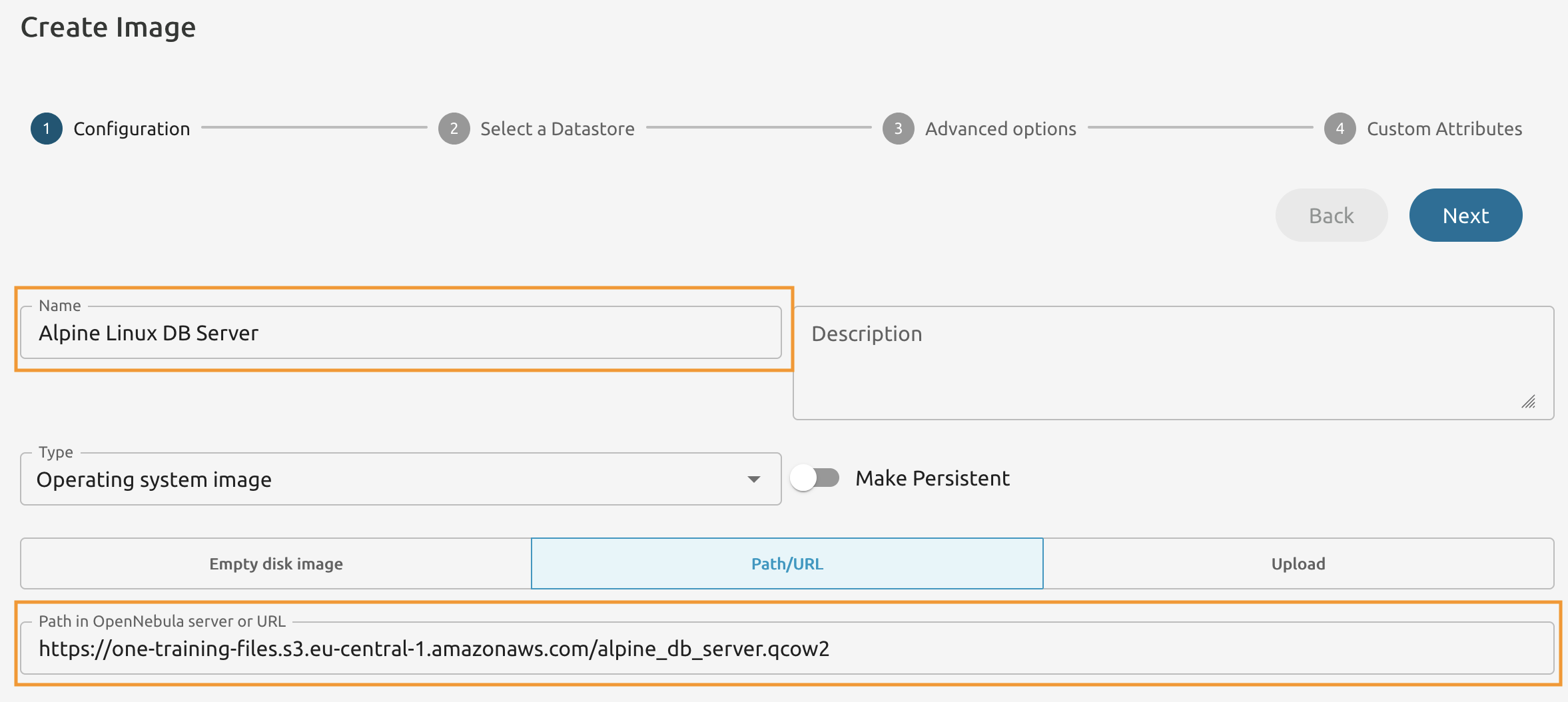
Name image as Alpine Linux DB Server.
Set the URL to https://one-training-files.s3.eu-central-1.amazonaws.com/alpine_db_server.qcow2
5.3.13
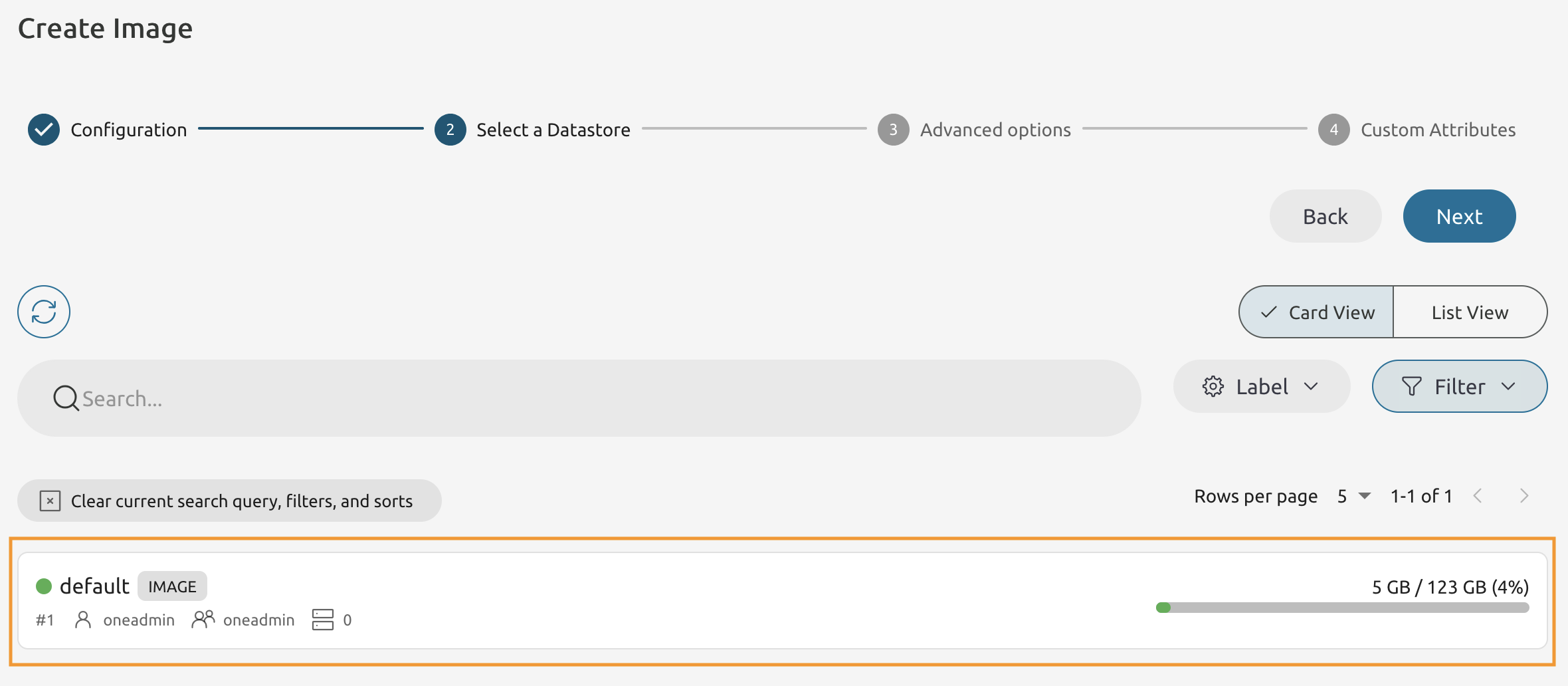
Select the default cluster.
5.3.14
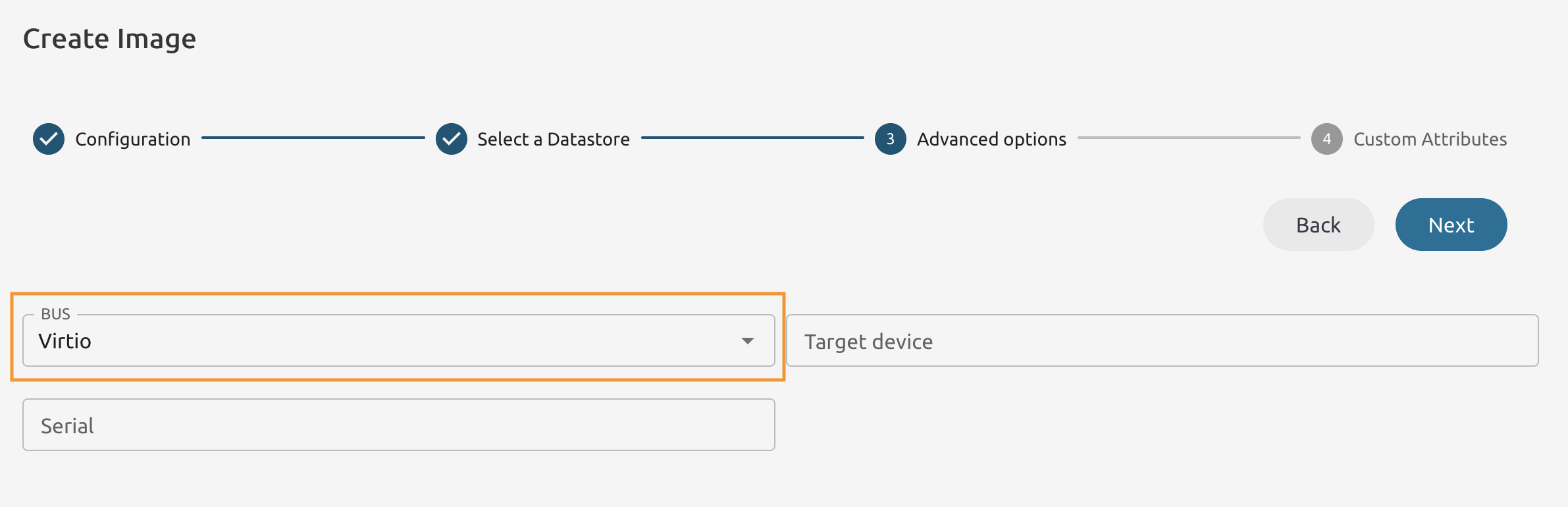
Set the BUS to Virtio.
5.3.15
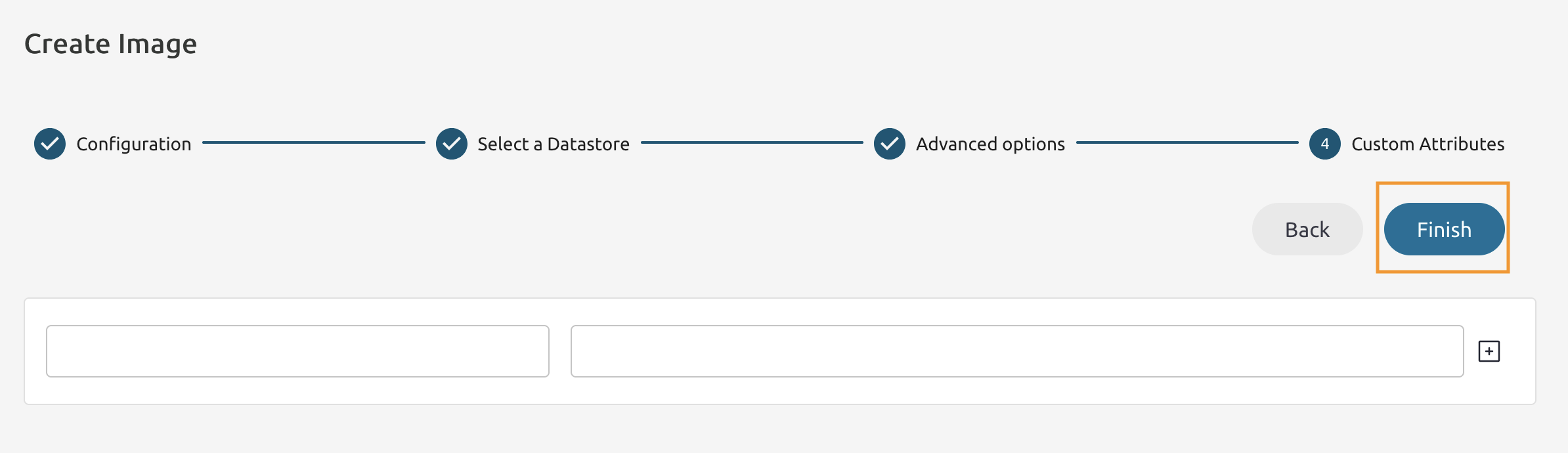
Keep the Custom Atributes empty and press Finish
5.3.16
Return to Node 1’s Command Line and extract the ID of a newly added Image.
oneimage list --filter NAME~DB

ID USER     GROUP    NAME                        DATASTORE     SIZE TYPE PER STAT RVMS
2 oneadmin oneadmin Alpine Linux DB Server       default         5G OS    No rdy     0
Change the permissions for the Alpine Linux DB Server image.
oneimage chmod <Image ID> 644
Create an Empty Image.
5.3.16
In the Node 1’s Command Line create a file with the following content.
SIZE=1024
NAME="Generic Datadisc"
FORMAT=qcow2
TYPE=DATABLOCK
5.3.17
Use the oneimage create to create the new disk on the default Image datastore.
oneimage create <FILE NAME> --datastore 1
ID: 3
Use oneimage show to extract extract the path to the actual Image.
oneimage show 3

IMAGE 2 INFORMATION
ID             : 3
NAME           : Generic Datadisc
...
SOURCE         : /var/lib/one//datastores/1/f3ed0184c89fdbd3adba8f984e2f1422
...
Copy the value from the SOURCE field.
5.3.17
Inspect the file using the file command.
Use the **SOURCE from the oneimage show output!**
file <SOURCE> |  cut -d ':' -f 2

QEMU QCOW Image (v3), 21474836480 bytes (v3), 21474836480 bytes
Check the actual size of an Image using the du command.
du -h <SOURCE>

196K	/var/lib/one//datastores/1/f3ed0184c89fdbd3adba8f984e2f1422
5.3.19
Allow Group members and Other OpenNebula users to use all images.
oneimage chmod 0,2 644
Change the Persitency of an Image.
5.3.20
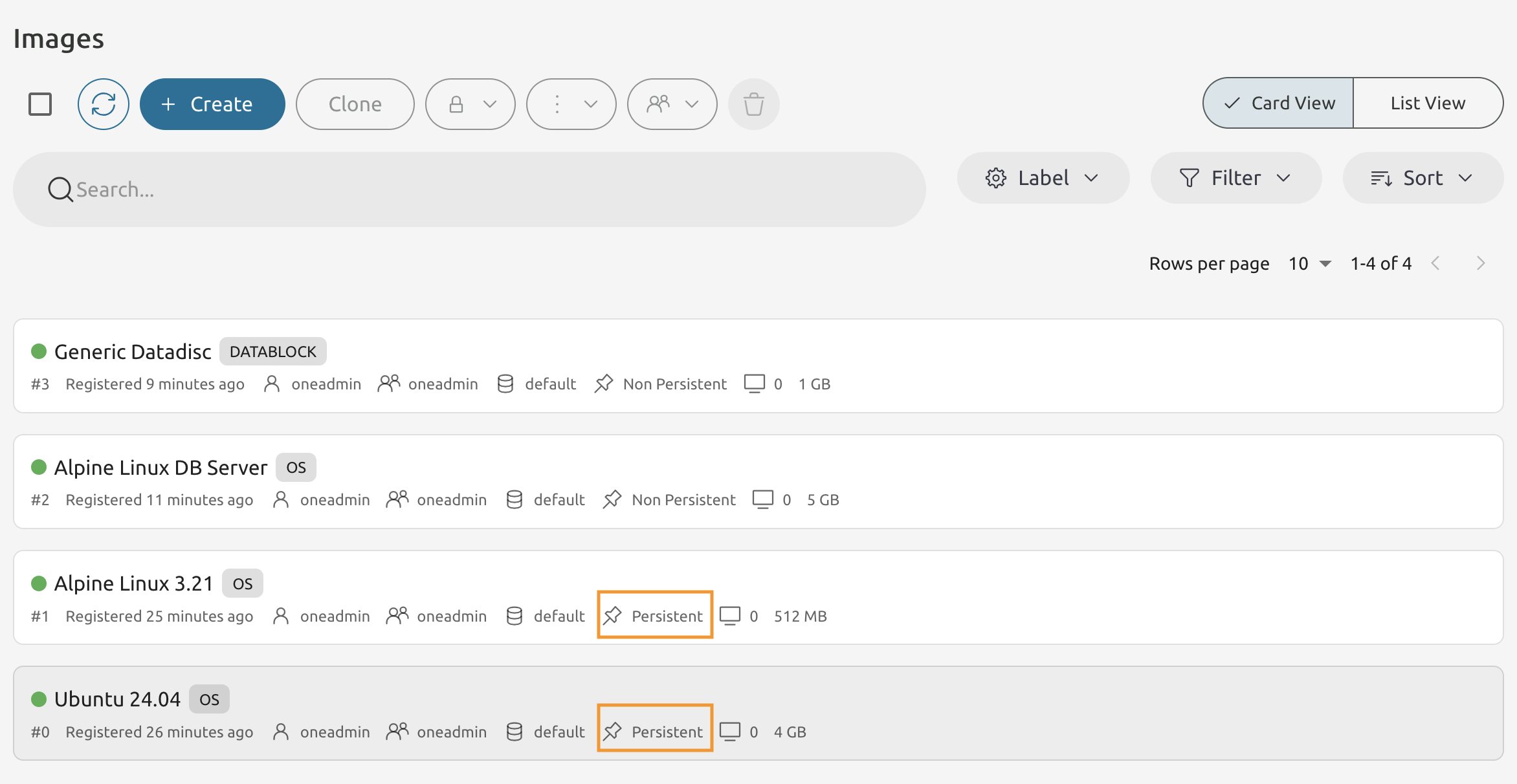
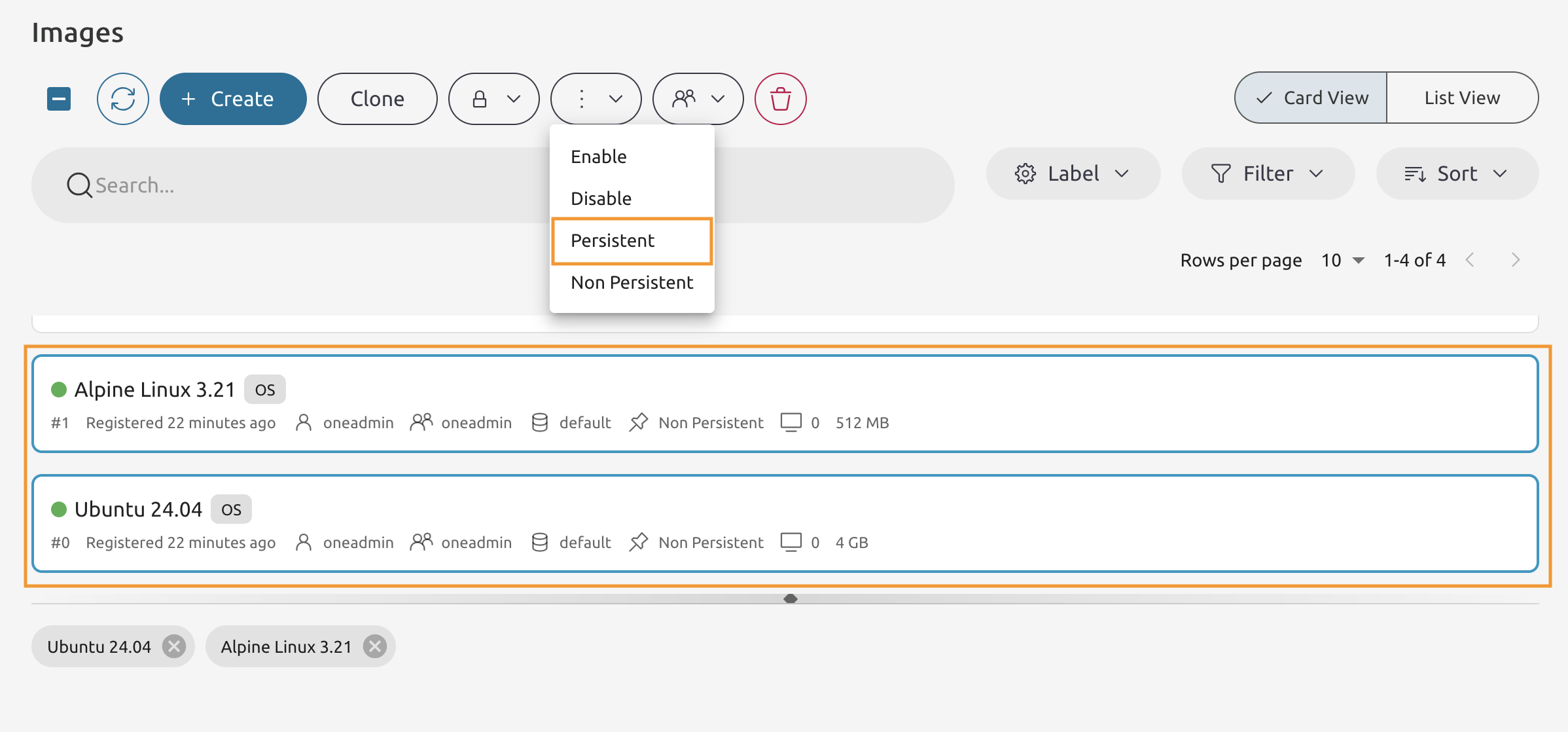
In Sunstone on the Images page select Alpine Linux 3.21 and Ubuntu 24.04 images.
Then from the drop-down list select Persistent.
5.3.21
You should end up with four images, two of them must be Persistent.